Appointments
Manage your medical and allied-health appointments calendar.
My Appointments
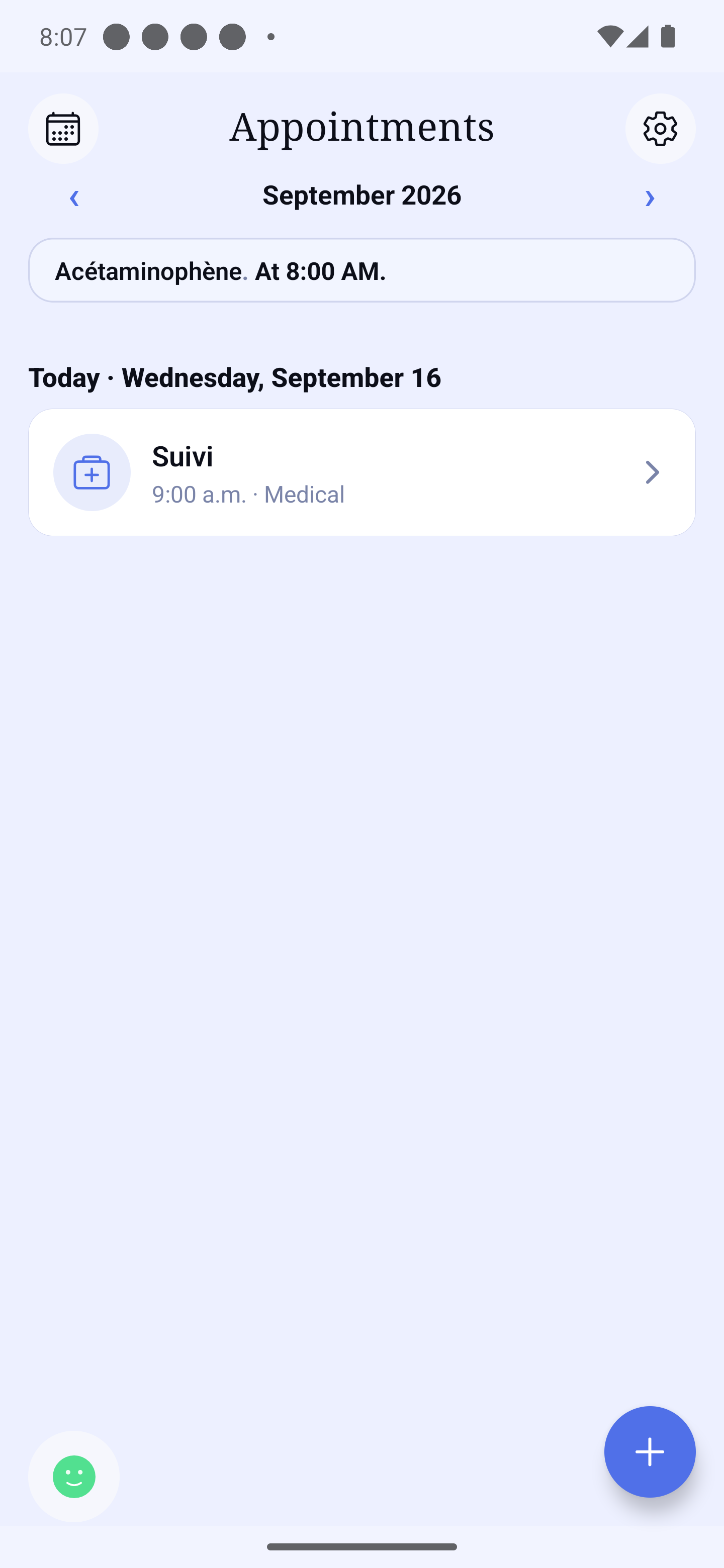
The Appointments screen lists all your upcoming and past appointments. Each appointment has a title, a date and time, a duration, a category, and may include a location and notes.
Choosing the displayed period
The screen opens on "Upcoming": every appointment in the next 12 months, nearest first, grouped by day. Each day header spells out how far off it is — Today, Tomorrow, In 5 days — next to the full date.
The ‹ Upcoming 📅 › row under the title changes the view: tap it to pick Day, Week or Month, or a specific date in the calendar. In that calendar, days with at least one appointment carry a small dot. The ‹ › arrows step from one period to the next, backwards or forwards; on "Upcoming" they are inactive, since the list always starts today. The "Past appointments" link at the bottom of the list opens your history.
An appointment from this morning stays visible until the evening, marked Completed if you set it so. The menu's eye toggle ("hide past") hides appointments already behind you. The bottom band on Home keeps your next appointment visible whatever period is chosen; one that is deleted, completed or cancelled leaves it at once and makes room for the following one.
Create an appointment
The + button offers two ways, both visible: Type an appointment (the form) or Dictate an appointment (by voice).
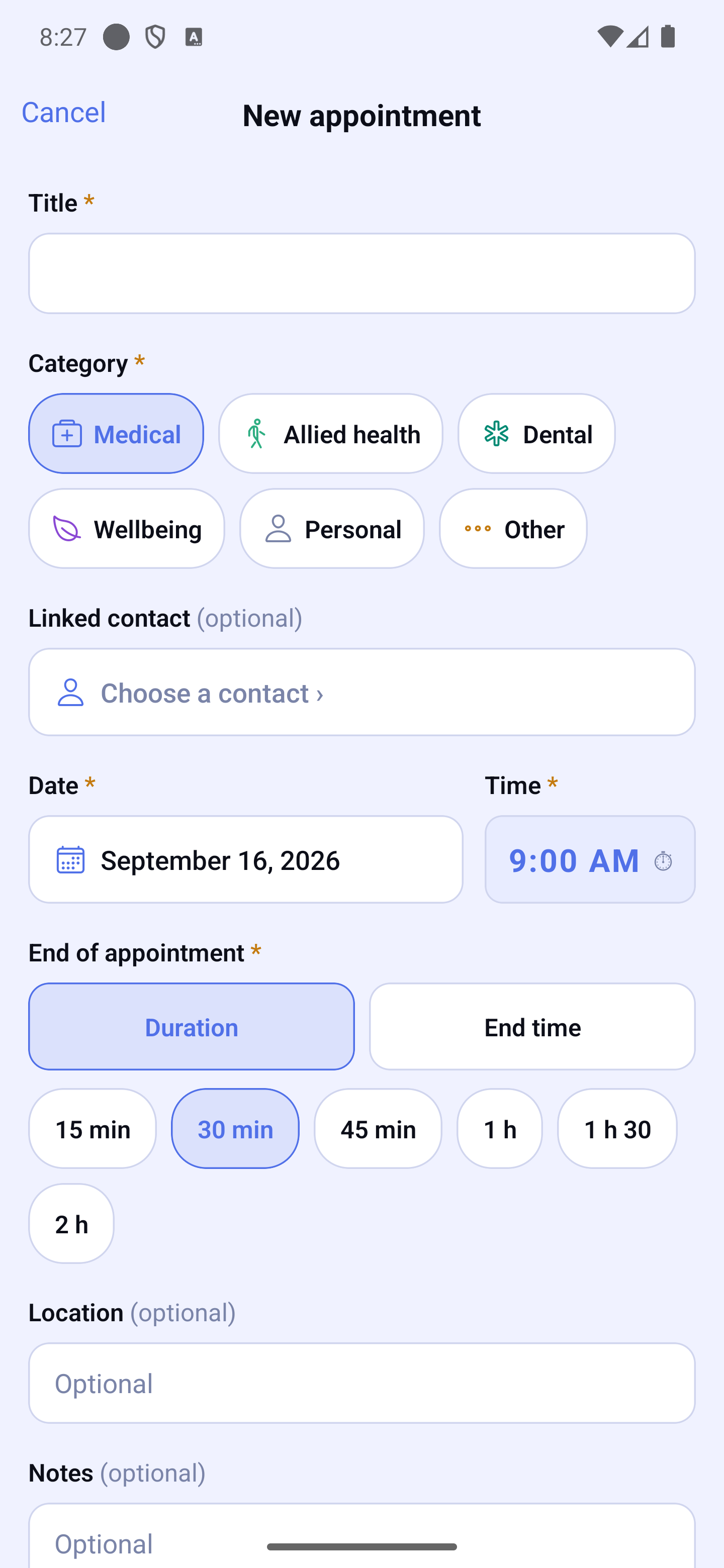
- Tap 🕐 → Appointments, then the add button at the bottom right, and choose Type an appointment.
- Enter the title (e.g. "Neurologist Dr. Smith").
- Choose the date: a calendar opens — tap the day you want (busy days show a dot).
- Choose the start time.
- Set the end: either a duration or a precise end time (Duration / End time tabs).
- Pick the category that best fits.
- Add a location and notes if needed.
- Review the reminders and, if useful, a re-book reminder, then tap Save.
Dictate an appointment
Choose Dictate an appointment from the + menu, hold the microphone and say your sentence — for example "Doctor Smith next Thursday at two". Release, read it back, correct it with the pencil if needed, then Save.
HoraDose then opens the form already filled in with what it understood: nothing is created without you. Anything it did not understand stays empty — never guessed — and the form asks you for it. Check the date and time, complete it, then Save.
The 6 categories
Pick the category that matches the appointment. Each category has its own color in the calendar and its own set of default reminders (which you can override, see below).
- Medical — family doctor, specialist, hospital, exam or blood test.
- Allied health — physical therapy, occupational therapy, speech therapy, osteopathy, nutrition.
- Dental — dentist, hygienist, orthodontist, oral surgery.
- Wellbeing — psychotherapy, mental health follow-up, guided meditation, coaching.
- Personal — important personal commitment you don't want to forget.
- Other — any other category that doesn't fit above. When you pick Other, a "Specify" field appears so you can note the exact type (e.g. "Podiatrist").
Set up reminders
Reminders alert you before an appointment starts.
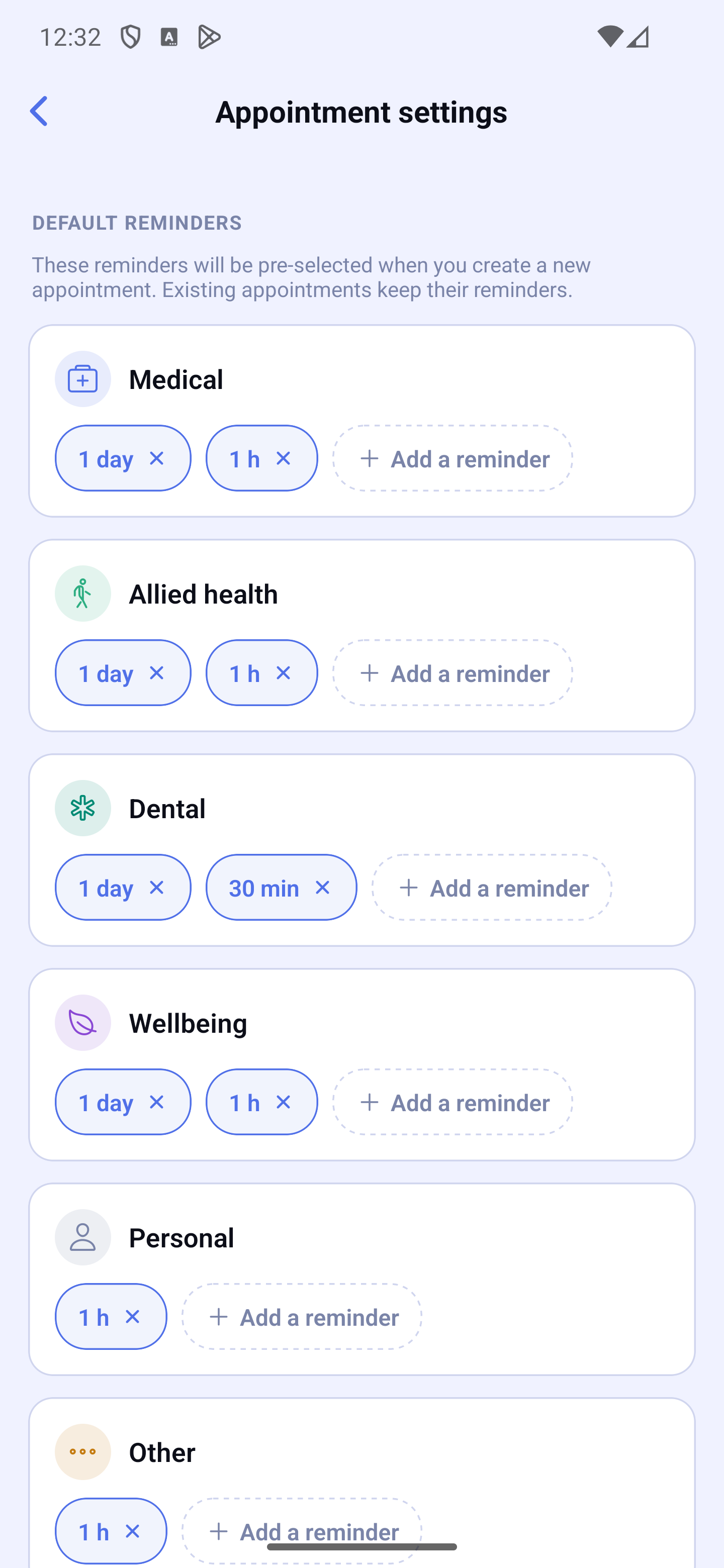
Default reminders, per category
In Settings → My appointments, you can define the default reminder set for each category. For example: for the Medical category, a reminder 24 h before and another 1 h before.
Custom reminders, per appointment
For a specific appointment, you can add, remove or change reminders — the category defaults serve as a starting point. You can stack several reminders (e.g. 1 week + 1 day + 1 h before), up to 4. Lead times range from 15 minutes to 2 weeks before.
Remind me to book again
For recurring follow-ups (mammogram, eye exam, dental cleaning…), ask the app to remind you to book again: 3 months, 6 months, 1 year or 2 years (or None by default). When the time comes, a gentle notification suggests booking your next appointment. It is not an automatic appointment — just a reminder.
Quiet hours
Define a quiet time window (for example 10pm → 7am) during which no audible reminder or vibration is fired. Reminders that would fall in this window are pushed to the beginning of the next active window.
Configure under Settings → My appointments → Quiet hours.
Link a contact to an appointment
An appointment can be linked to an entry in your contacts directory (doctor, dentist, allied-health professional, etc.). The link is purely informational — it does not affect the appointment's category, which remains your choice.
Two ways to link a contact:
- From a contact's card — open the contact card and tap the 📅 Schedule with [name] button at the top. The appointment creation form opens with that contact already selected.
- From the appointment create/edit screen — under "Category", tap the Linked contact field to open the picker. Pick an existing contact or choose "No linked contact".
Why the name stays after a contact rename
When you create (or edit) an appointment linked to a contact, the app captures a snapshot of the contact's name at that moment. If you rename the contact later, the appointment keeps the original name — that snapshot is what shows in your history. The next time you edit the appointment, the snapshot is refreshed with the new name.
Similarly, if you delete a linked contact, the appointment remains viewable and keeps showing the historical name — your archives are never broken.
Display on Home
Today's and tomorrow's appointments appear in the Home timeline; for later ones, a panel at the bottom of Home announces the next one. You can hide this panel (for example if you prefer a tidier Home):
- Open Settings → My appointments.
- In the Display section, toggle off Show on home.