Home Screen
My Day: the timeline, the clock, corners and menus
The Home Screen — "My Day"
Home is a single timeline showing your day hour by hour: your intakes, meals, wake/bedtime, appointments and food restrictions. It always opens on your next intake.
Notice on the very first launch
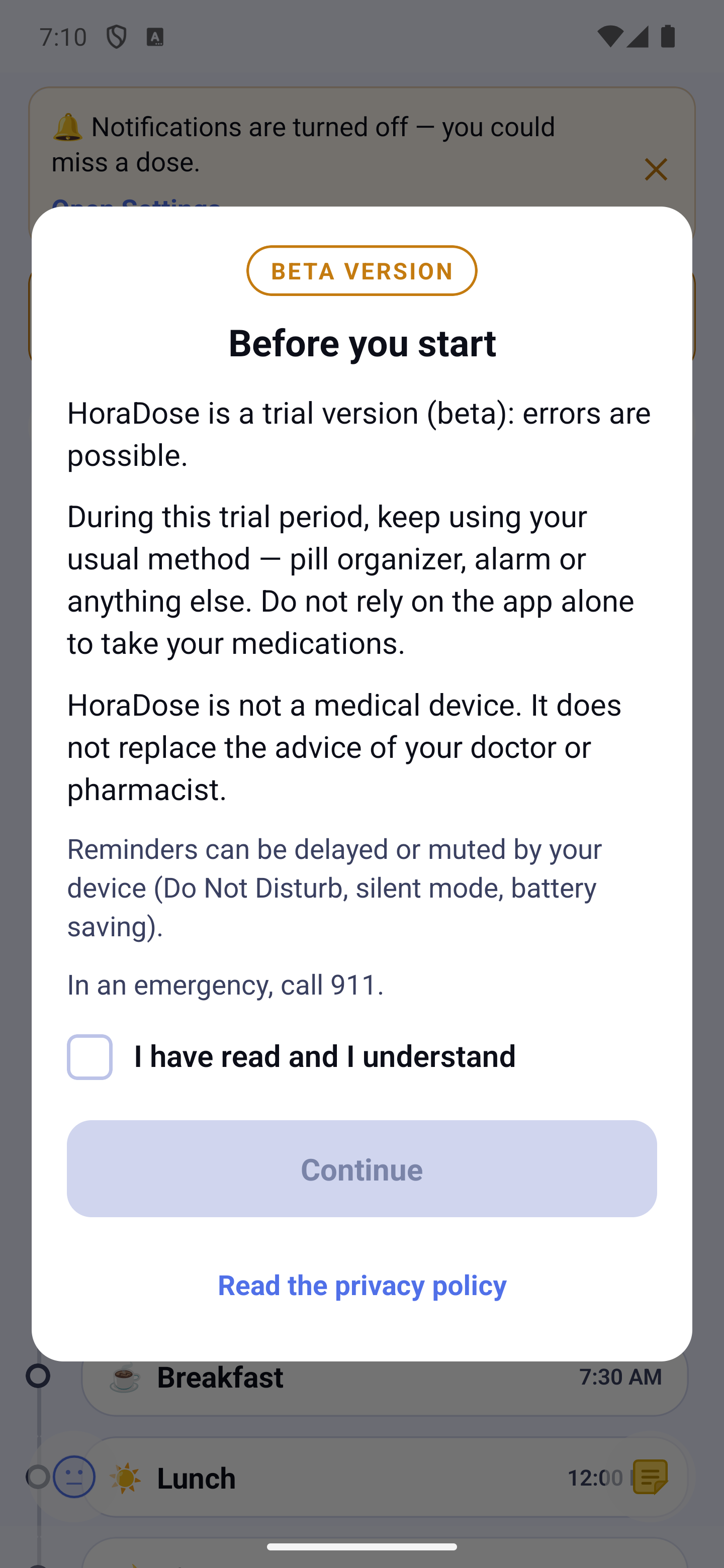
The very first time you open HoraDose, a notice appears over the home screen: the app is a BETA version, it is not a medical device and does not replace the advice of your doctor or pharmacist; reminders can be delayed or silenced by your phone. It also reminds you to keep your usual method (pill organizer, alarm) during this trial period. Tick "I have read and I understand", then tap "Continue". It is shown only once — it comes back only if this text changes in a future version.
Guided tour
HoraDose guides you with small speech bubbles, at your own pace. None of your data is saved or changed during a tour, and you can stop it at any time.
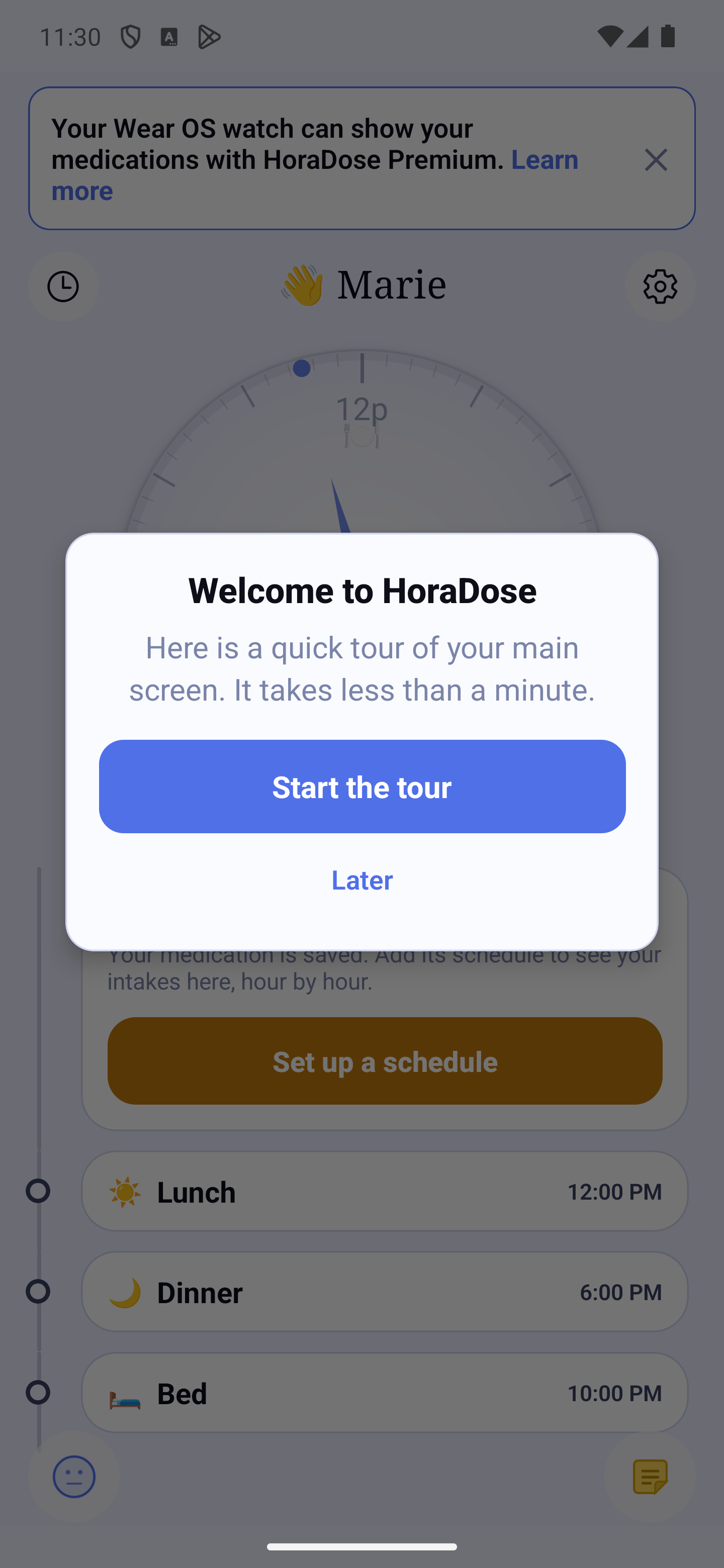
On first launch — the home screen. The first time you open the app, a "Welcome to HoraDose" card offers a quick tour of the main screen. Tap "Start the tour", or "Later": the card will be offered again on the next launch, then one last time 7 days later. After that, you can always see it again with ⚙ then "Replay the tour". The tour has 22 steps in six chapters: the clock, the day, the other screens, treatments and settings, mood, and notes. Each bubble shows its chapter and "Step N of 22", rings the element it presents and never covers it. For the top-left menu, the ⚙ menu and the note button's menu, the tour opens the menu and presents its choices one by one ("Choice 1 of 7"…): these menus are only previews, tapping them does nothing. While your day is empty, an example image marked "Example" shows what it will look like. Once you have data, steps are added only if the element is on screen: the next dose, an unconfirmed dose, an ongoing situation, travel mode, the next appointment and a line of the day. "Dictate a note" is presented, marked "If available", only if dictation exists on your device.
Moving forward, back, or stopping. Tap "Next" ("Finish" on the last step) or "Previous" (not shown on the first step). On Android, the Back key acts as "Previous" and never closes the tour. "Skip the tour", at the bottom of every bubble, closes it for good. Tapping the dimmed background does nothing: only the bubble's buttons act.
First-opening tours of the screens. Each screen has its own small tour the first time you open it: Journal, Reports (one tour per step: the templates, the document, the preview), Appointments, Statistics, Contacts, My treatments, New treatment (one tour per step of the assistant, with "Tip N of X") and each mood entry sheet (mood, one-time symptoms, start of a situation, ongoing situation), which have a short tour of three bubbles at most. They present what the screen shows at that moment, so their length varies. They do not open when you edit a treatment or a mood that is already saved, and do not come back once finished or skipped; "Skip the tour" in Reports or in the assistant skips all of its steps. If a dose needs to be recorded, the "Dose to record" prompt appears first and the tour resumes afterwards.
Replay the tour. Tap ⚙ at the top right, then "Replay the tour" (the last choice in the menu): every tour is started over. The home tour begins right away, straight at step 1; if a module was open, you first return to today's home screen. The tours of the other screens start again the next time you open them. The last bubble of every tour reminds you how to replay it.
What You See
The Clock (top)
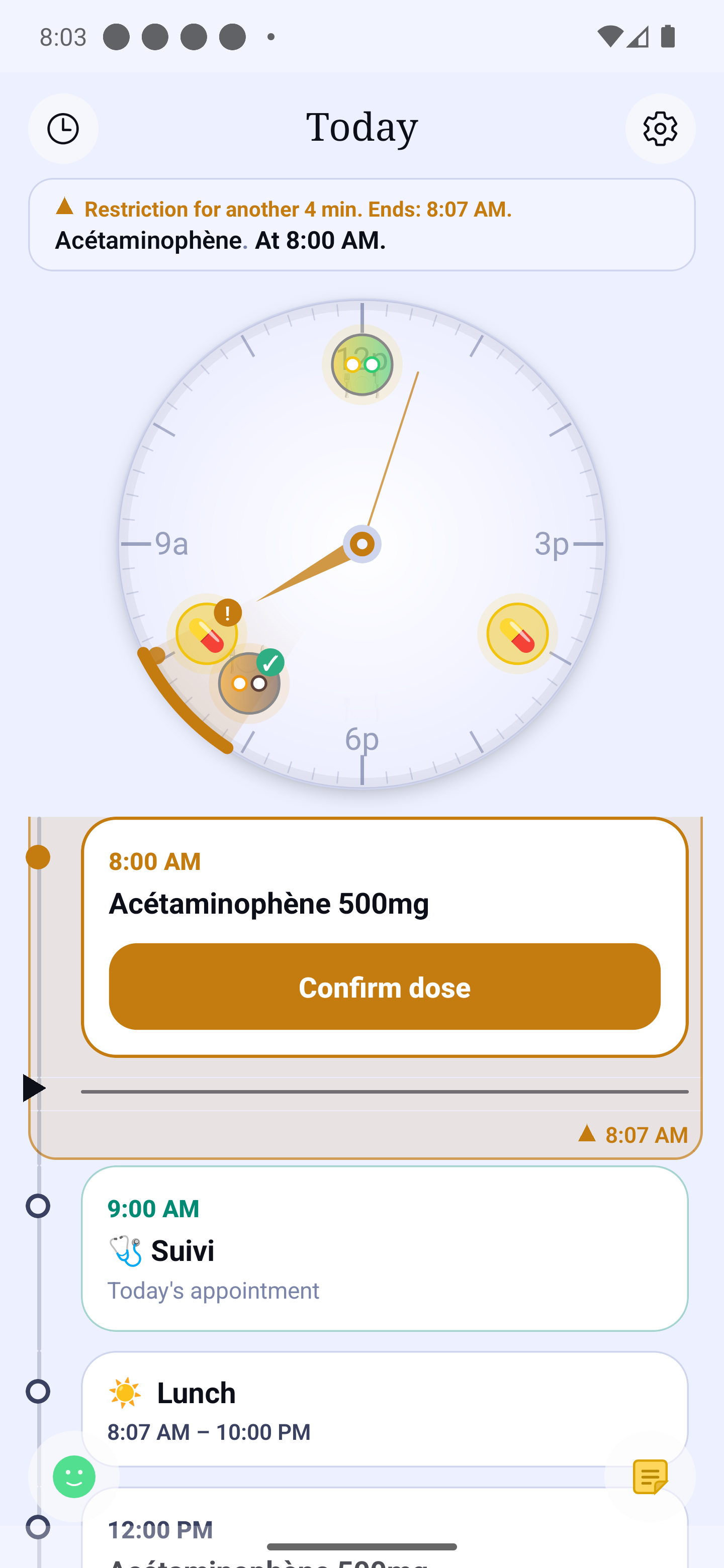
The clock shows your doses and your next intake with the time left. As you scroll the timeline forward it shrinks into a pill ("Next · HH:MM · in X") to give room to the timeline, and expands again when you return to now. Tap a dose on the clock: it lights up, then the timeline scrolls to it. Swipe up on the clock to put it away. To bring it back, scroll the list back to the start of the day. A small tremor of the finger does not count, it takes a real swipe. The clock dial always stays sharp. The day's list passes behind it: it fades out gradually, and you see it better and better as it nears the bottom of the clock. When you put the clock away, it moves up and slides under the top of the screen. A dose that groups several medications shows their real icons in its bubble: with 2 to 3 medications, every icon; with 4 or more (or on a small screen), one or two icons and a badge giving the number of medications. With a screen reader, each dose on the clock reads as a button, for example "08:00, 12 medications, upcoming".
The Timeline (center)
Swipe down to revisit the past (confirmed ✓ / unconfirmed ✕ doses), up for what's next (upcoming doses, meals, bedtime, "As needed", then a dimmed Tomorrow). A ▶ pointer followed by a line marks the present. Only medication times are shown in large type: wake-up, meals and bedtime show their time small, to the right of their name, and the "in X min" countdown joins the next dose only. A food restriction is an orange zone: at the top, ○ and the time the restriction starts; at the bottom, ▲ and the time it ends. After a while untouched, the timeline returns to your next intake on its own.
On a new installation, wake-up, meals and bedtime only show in the timeline when a dose is linked to them ("Automatic" setting). Your medication reminders always stay visible. To see them every day: Settings → My meals and Settings → My wake and bed times, choice "Always show".
Each medication of a dose has its own line, with its icon, name, dosage and quantity (for a confirmed dose, the quantity recorded for that medication). Up to 5 medications, everything is shown. From 6, the tile shows the number of medications, 4 lines and the link "Show the N other medications"; "Hide the list" folds it back. The "Confirm dose" button is always within reach, without unfolding the list, and the confirmation window lists every medication.
In the timeline, each medication's pill sits on a rounded square in that medication's colour, so you recognise the right medication at a glance. The square is the same whatever the state of the dose; the state (confirmed, upcoming, unconfirmed) stays written out in words on the card. The circles of the clock do not change.
The dose due now stands out with its orange confirm button. If an unconfirmed dose is off screen, a small ⚠ triangle appears on the right edge — tap it to jump there.
Corners & Menus
At the top centre, Home greets you by your first name (👋). Four round buttons sit in the corners:
- 🕐 (top-left) — HoraDose (your day), then, in alphabetical order: Appointments, Contacts, Ensemble, Journal, Reports, Statistics. Each choice opens full screen and the corner button takes the icon of the open screen; the Back button at the top left returns to your day.
- ⚙ (top-right) — a menu: Treatments, Refills (a small number shows how many medications are due to reorder), three timeline display switches — Clock shown, Past shown, Current restriction (which moves on to "All restrictions" then "No restrictions") — and Settings.
- 🙂 (bottom-left) — the mood menu: a circle of three choices to note your mood, one-time symptoms or a situation (see "Mood, symptoms and situations"). The face reflects your latest mood of the day.
- + (bottom-right) — add a note or an exercise to your journal.
- Next appointment — when it is beyond tomorrow, a fixed bottom panel shows it; tap for details.
"Scan a code" (to link a loved one) lives in the Ensemble view, right above "Support a loved one".
Looking back at another day
Home always shows today. To look at another day, tap 🕐 → Journal: the period selector under the title lets you pick a day, a week or a month.
Always See a Medication's Next Dose
By default, when a dose is due now, it replaces the next-dose display. To keep an important medication's next dose always in sight, tick it in the Settings → Next dose display list. Its next dose of the day then stays visible below the due doses, as a subtle 🕐 card with the scheduled time. Its time is also what shows up first on the Home top band, the Apple Watch and Wear OS complications, the widget and the Dynamic Island — even when another medication is due sooner. Reminders keep ringing for all your medications, and when nothing is checked, the day's next dose is simply shown.
Food Restriction
If your medication has a food restriction, a banner displays with the remaining time. It appears in the band at the very top of the screen, above the messages and the round buttons — on Home as in every module. In the band, the restriction line and the next-medication line are separated by a small gap, and the medication's pill is shown in front of its name.
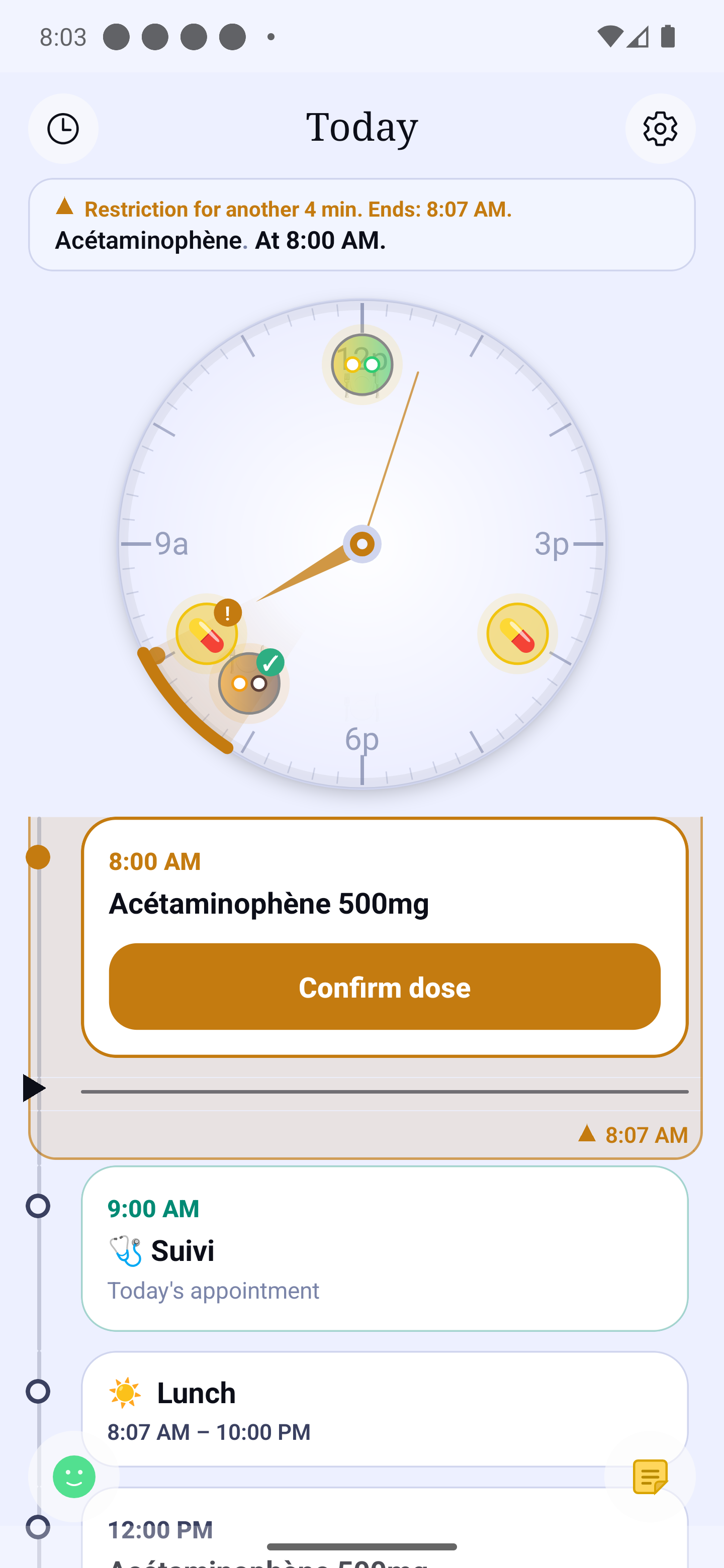
On a day when a food restriction applies, each meal tile shows under its name the free window when you can eat: from the end of the previous restriction to the start of the next one (for example "11:15 – 13:30"). With no restriction before the meal, the window starts at your wake-up time; with none after, it runs until your bedtime. If the meal time falls inside a restriction (⚠), the window that follows it is shown. Nothing is shown on a day without restrictions, or once the meal is over. The window replaces the meal time; if a reminder for that meal rings at another time than the start of the window, the meal time stays visible, small, on the right. The same line appears on the watch.
Today's Mood
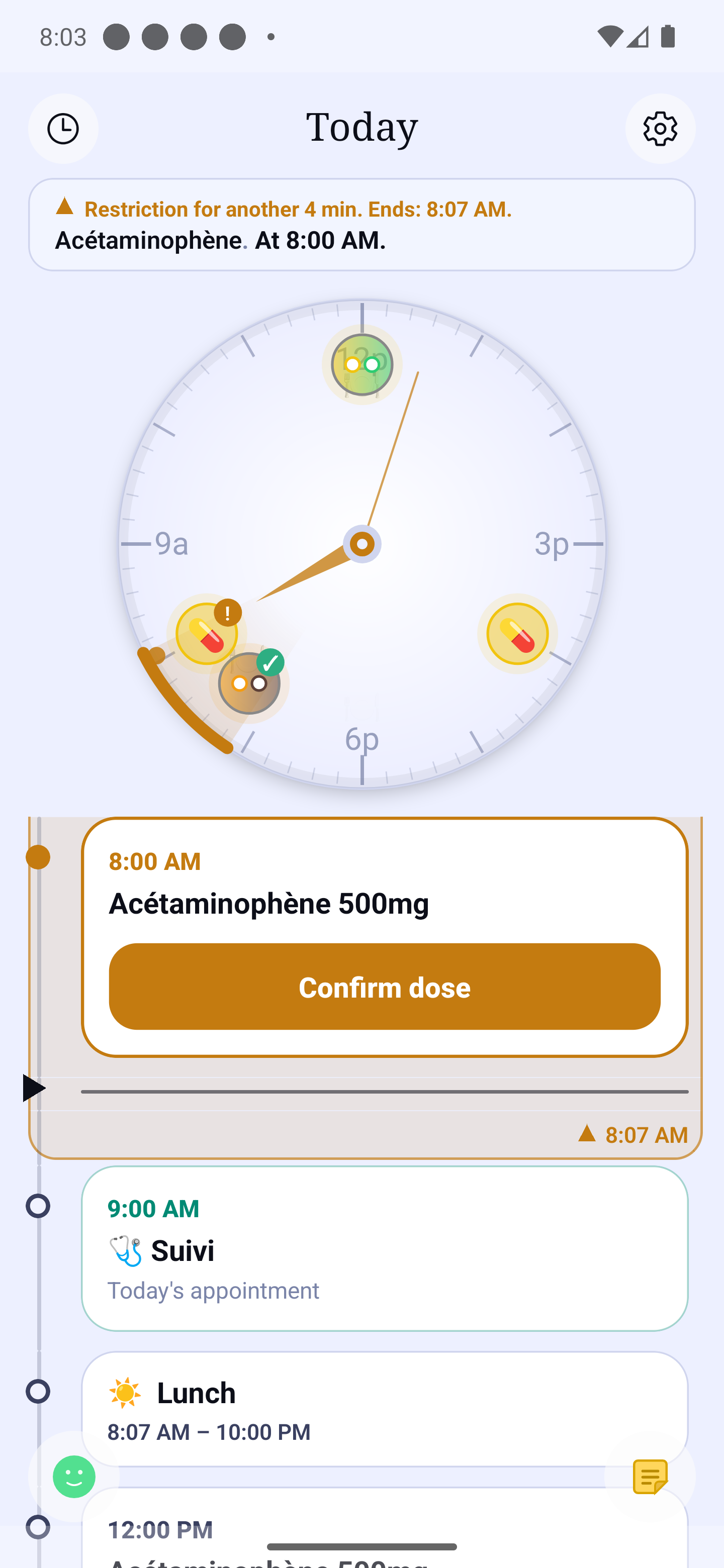
If you have logged your mood today, the 🙂 button at the bottom left takes on the face of that mood. Tap it to open the circular menu (Mood, One-time symptoms, Situation).
Ongoing situation
When a situation is ongoing, a blue card "name — in progress" is the first card of the messages at the top (see "Messages at the top of Home"); tap it, or tap the ✎ at its top right, to open the "Situation" sheet. After a while away from the app, it turns into the question "Still ongoing?" (see "Mood, symptoms and situations").
Taking a Dose
When a dose is in its intake window, an orange button appears on the home screen.
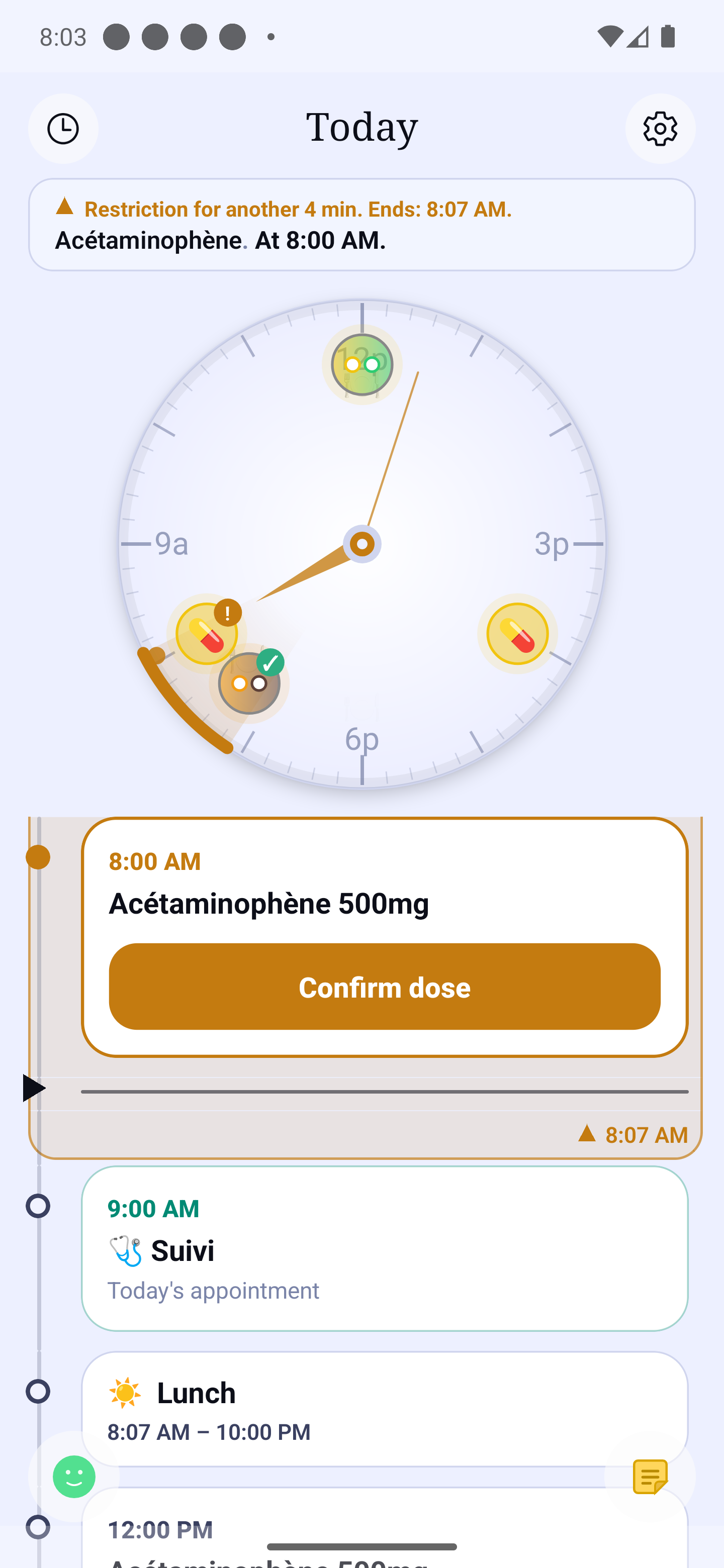
- Tap the orange button.
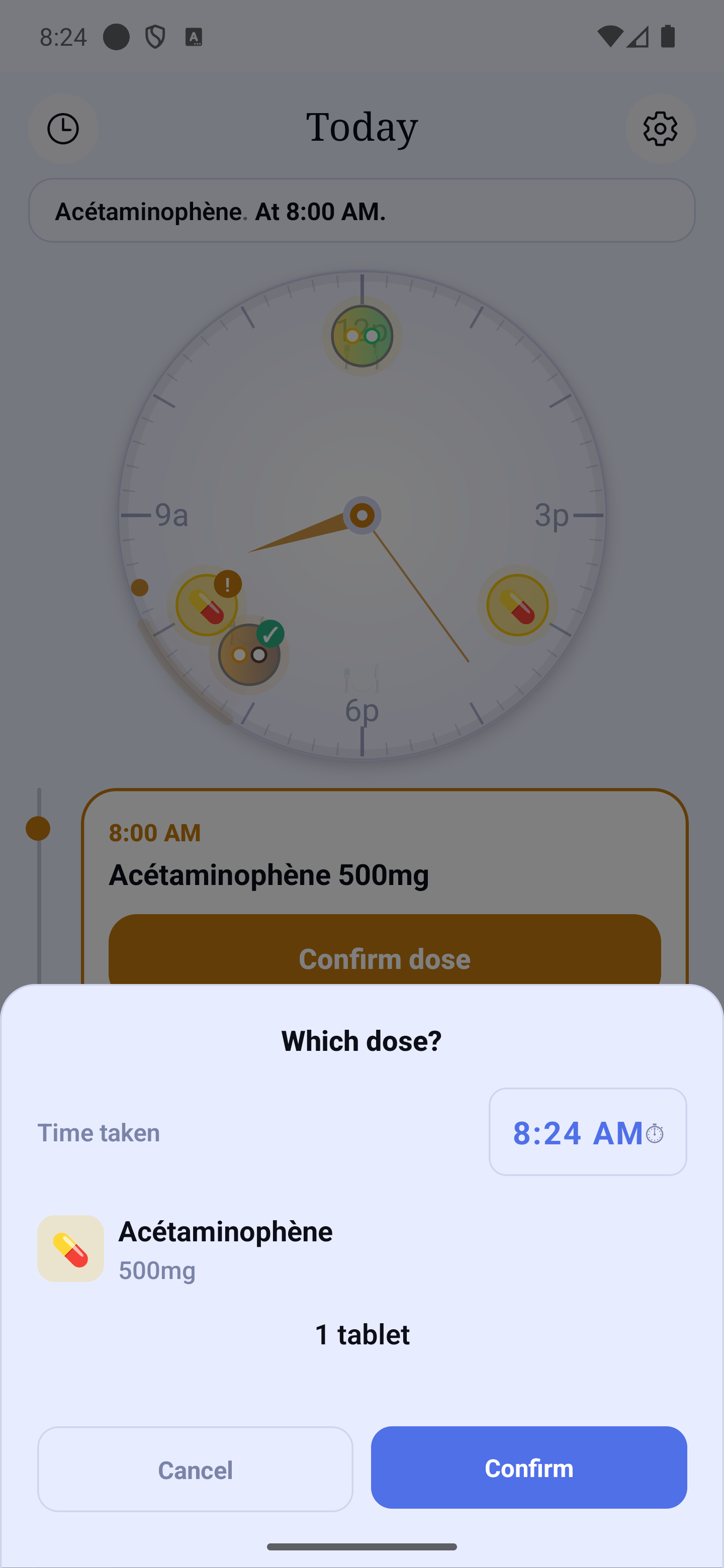
- The confirmation window shows, for each medication to take, its name, strength and quantity (for example "1 tablet", "5 mL") — so you can check exactly what you're taking before confirming. If a dose of a group is already noted, the confirmation window says so ("Already noted at 7:05 a.m.") and only asks you about the other medications.
- Tap "Confirm": the dose is recorded with the actual time taken.
- The button disappears and the clock updates.
A dose you never recorded
You took your 9:00 medication, but you never saw the notification — you were still asleep — and you open the app an hour later. The app asks you itself: a window appears when you open it, naming the medication, its quantity and the scheduled time, and offering three answers.
- "Yes, taken at 9:00" — your dose is recorded at 9:00, the time it actually happened, not the time you tap. That matters: this is the time that shifts your food-restriction windows and the gap before your next dose. If the quantity still has to be chosen, the usual confirmation window opens, already set to 9:00.
- "No, mark as skipped" — the dose is recorded as not taken, after the usual confirmation.
- "Later" — the question goes away and comes back in two hours. Closing the window does the same: nothing is recorded.
This window stays rare by design: it only appears when you open the app, never while you are using it, never when another dose is due right now, and at most three times a day for the same dose. After midnight, the app stops asking about yesterday. If several doses are waiting to be recorded, it counts them and takes you to your day rather than asking three questions in a row.
The end-of-day celebration
When you confirm the last scheduled dose of the day, the home screen congratulates you for a few seconds: fireworks in the sky if you use the "Sky" appearance, confetti in the light and dark appearances. A dose you chose to skip does not block the celebration; a forgotten dose (never confirmed nor skipped) does. It is silent, it never blocks anything on screen, the pattern changes every day, and it happens only once per day. If your phone is set to reduce animations, the celebration is not shown (with VoiceOver or TalkBack, a spoken announcement replaces it). You can turn it off in Settings → Appearance and display → Celebration.
A tile's menu (the ⋮ button)
On every dose of your day (to take, later, missed, already taken, a logged "as needed" dose, a floating dose, the "Now" block), tap the ⋮ button at the top right of the tile: a frosted menu opens right below it, and the rest of the screen dims so you can see which tile you are acting on. The rest of the tile does nothing, except a dose not yet logged: tapping it opens the dose confirmation. On meals, wake-up, bedtime, restrictions and appointments, tapping the tile still opens its menu; on "As needed", hold your finger on the card (the "Take" button stays separate). With VoiceOver or TalkBack, the button is announced "Options for" followed by the medication.
If the tile sits at the very bottom of the screen, the menu opens above it instead of below: it always stays fully visible, never clipped by the top or bottom of the screen. And if you use large text, the list of actions may grow taller than the screen — it then scrolls under your finger, while the menu's title (the medication name and quantity) stays pinned at the top, so you always know which dose you are acting on.
The menu never repeats the button already on the card: when the card shows "Confirm dose", the menu does not offer it.
| Tile | What the menu offers |
|---|---|
| Dose due | Remind me in… · Remind me at… · Notification for this dose · Skip this dose · View the medication · View the schedule |
| Dose later today (no button) | Confirm this dose · Notification for this dose · Skip this dose · View the medication · View the schedule |
| Missed dose | Confirm this dose · Skip this dose · View the medication · View the schedule |
| Dose already taken | Correct the time taken · Correct the quantity · Add a note · View the medication · View the schedule · Undo this dose (until the end of the day) |
| Meal · Wake-up · Bedtime | Change today's time · the matching settings screen |
| Restriction edge (orange) | Remind me at the start (or the end) · Restriction details · View the medication |
| Appointment | Open the appointment · Edit · Appointment settings |
| As needed | Long press only — View the medication · My treatments |
View the medication — opens "Edit the treatment" on that medication. View the schedule — opens the same assistant straight at step 3, "When to take it": when, how often, until when. When several medications are taken at the same time, the menu offers one line per medication, each naming its own ("View Levodopa's schedule") — you open the one you had in mind, never one picked for you.
Skip this dose — records it as not taken in your journal and cancels the notification for that dose. Your later doses keep theirs. A confirmation tells you so before anything is written.
Remind me in… — 10, 15, 30 minutes or a duration of your own. Remind me at… — a time wheel, if you rather think "around eight". Either way the limit is one hour, and the wheel shows the allowed range. A postponed dose says so at the top of its menu, with a "Move back to HH:MM" line to undo it.
"Rings when silenced" — when the medication is set to ring even when silenced, the menu header says so in a pill. When it has no reminders, the header reads "Notification off". The setting applies to the whole medication (see "Ring even when silenced"), never to a single dose.
Correcting a dose — its time, its quantity or a note, until the end of the day it was recorded on. After that these lines disappear: a journal rewritten days later means nothing to whoever reads it.
Undo this dose — for the most frequent mistake: the wrong tile tapped. The line stays in the dose's menu until the evening; a confirmation asks "Remove this dose" or "No, I took it". If you confirm the same dose again shortly after removing it, the app reminds you before recording — without stopping you from recording it.
Messages at the top of Home
At the very top of the screen, the band with the food restriction and the next medication always stays visible — on Home, in every module and in Ensemble. Right under it, the messages (ongoing situation, travel, refill, missed call, a loved one's proposals, backup…) form a stack: one card is shown, and a thin edge shows underneath for each other message (5 edges at most).
- Swipe left or right on the card, or tap the small ‹ › arrows on the sides, to see the next or previous message.
- Swipe down on the stack to open it: every message shows one under the other, inside a zone that never takes more than 40% of the screen. The small bar under the stack reminds you of this gesture; the first time, a bubble explains it: "Swipe down to see all your messages."
- To close it: "Hide the messages" under the list, or swipe up once the list has reached its end.
- Tapping a card does its usual action. At the top right of a card: ✕ closes it, ✎ adjusts the ongoing situation, ⋮ opens its options (for a missed call: "Call by phone" and "Dismiss").
Some alerts are never put in the stack: they stay fully shown at the top because they can change what you take or when (reminders off, reminders out of date, quiet hours, a change applied by a loved one, a dose noted by a loved one, a dose reminder). A new message comes on top of the stack without opening it. The stack closes again when you come back to the app.
With VoiceOver or TalkBack, the stack is already open: the messages are read one after the other. "Show all messages" and "Hide the messages" are buttons.
Next appointment on Home
Appointments for today and tomorrow appear right in the timeline, at their time. For those after tomorrow, a fixed panel at the bottom of Home announces the next one, if it falls within the next 30 days. Tap it to open that appointment. An appointment that is done, missed or cancelled steps aside for the next one.