Start Without an Account
First-launch screens, no account, your data on the phone
HoraDose starts without an account
HoraDose asks for no account, no email address and no password. Your data is stored only on your phone, protected by encryption. On first launch a few short screens welcome you; just tap "Continue" to move on.
1. Welcome
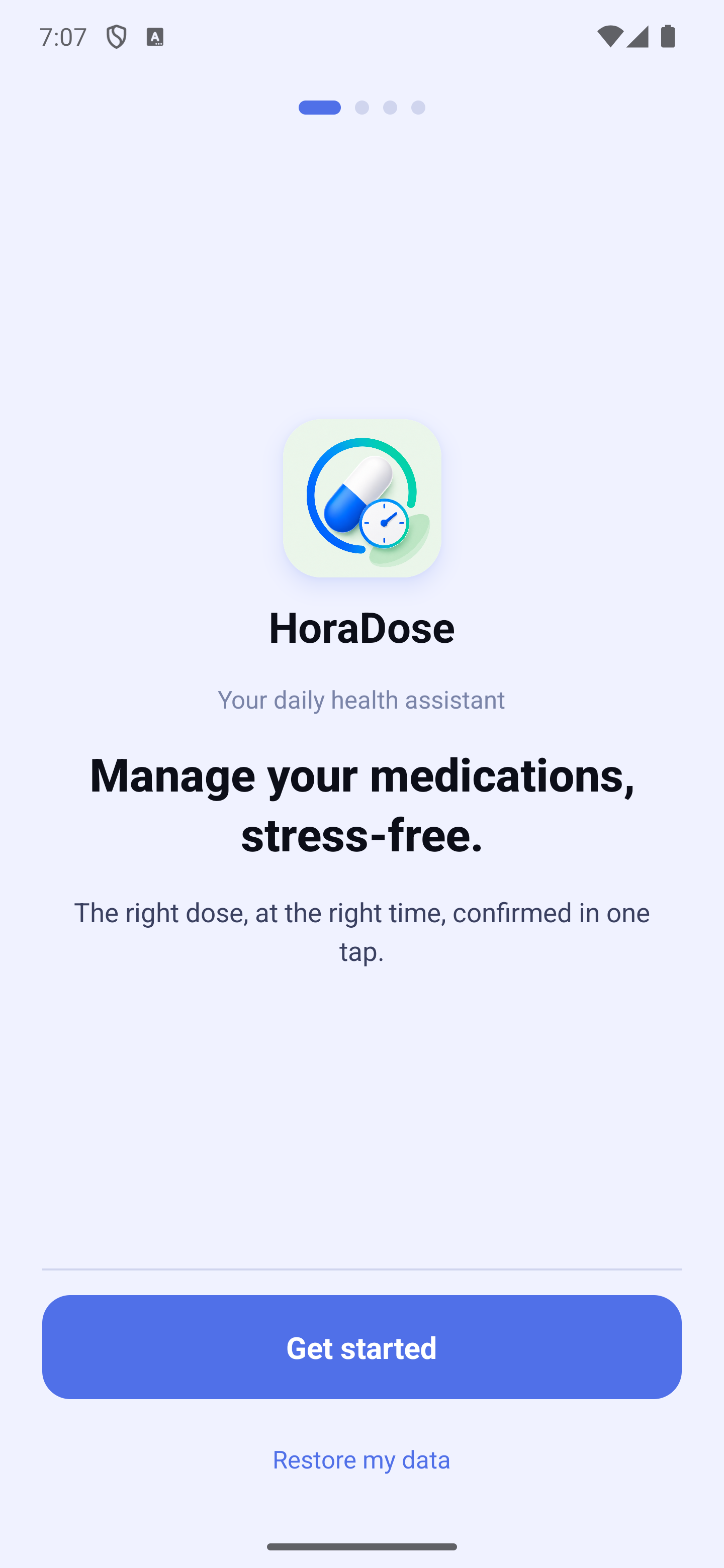
Tap "Get started". If you are reinstalling HoraDose and have a backup, tap "Restore my data" instead (see the Backup section).
2. "HoraDose is your assistant"
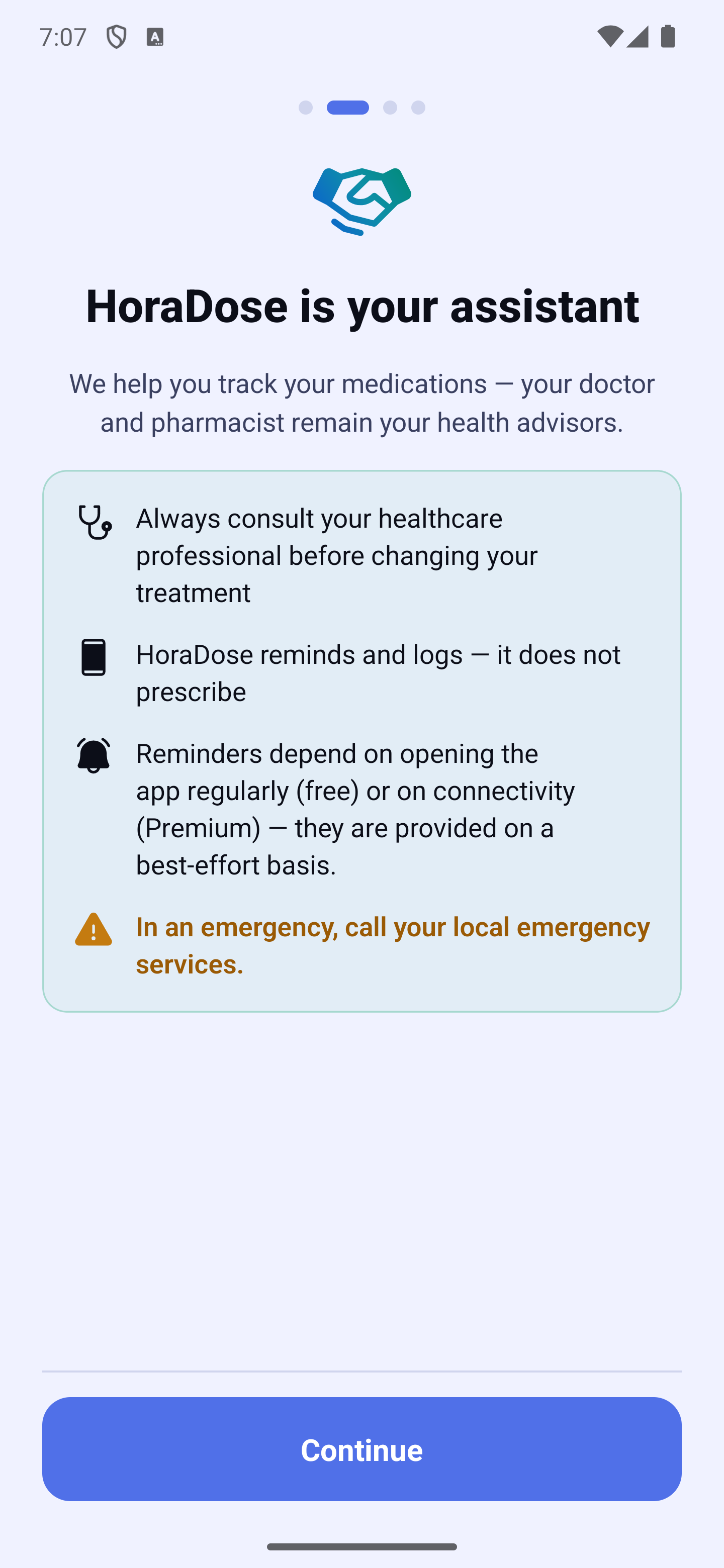
An important reminder: HoraDose reminds and records — it does not prescribe. Always check with your healthcare professional before changing your treatment, and in an emergency, call emergency services.
3. What the app does
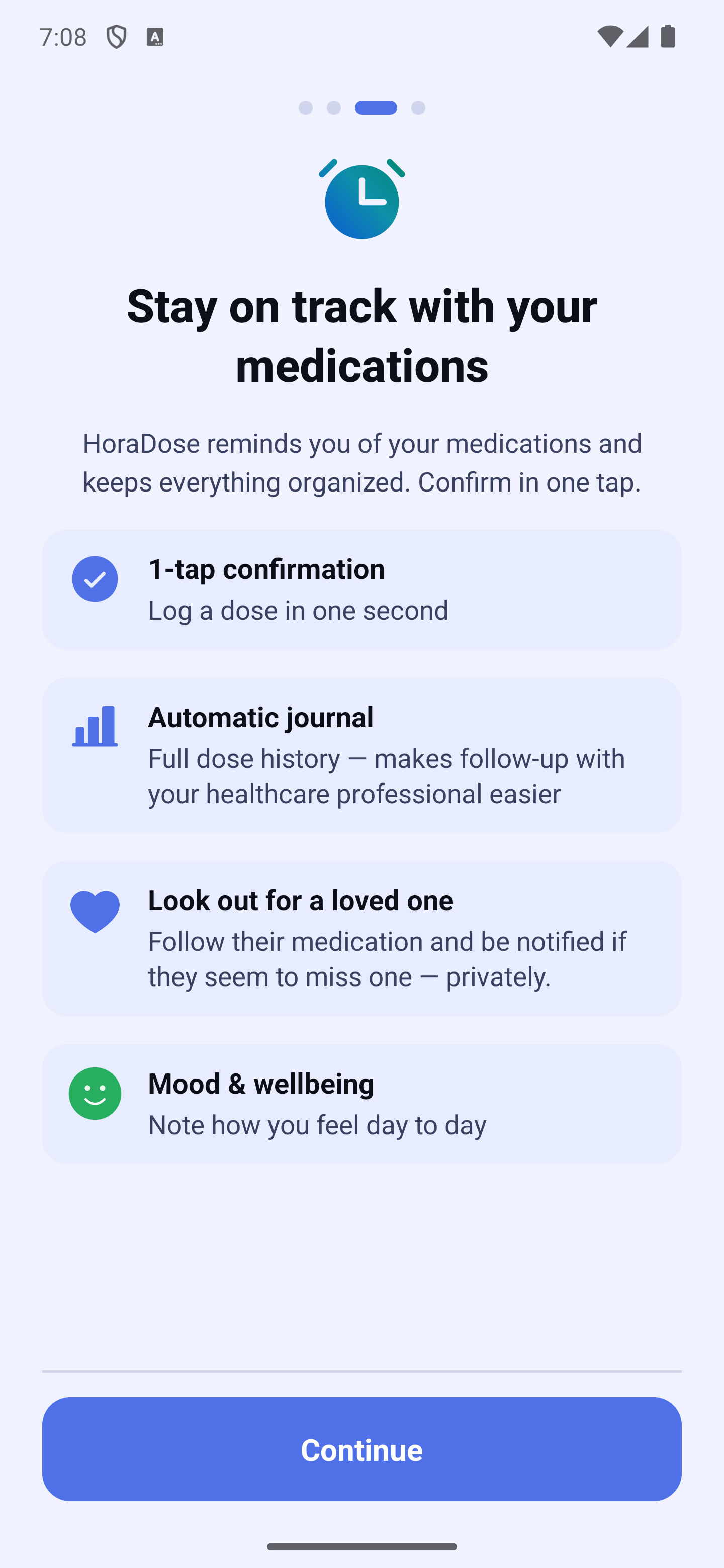
Four cards show the essentials: confirming a dose in one tap, the automatic journal of your doses, supporting a loved one, and noting your mood.
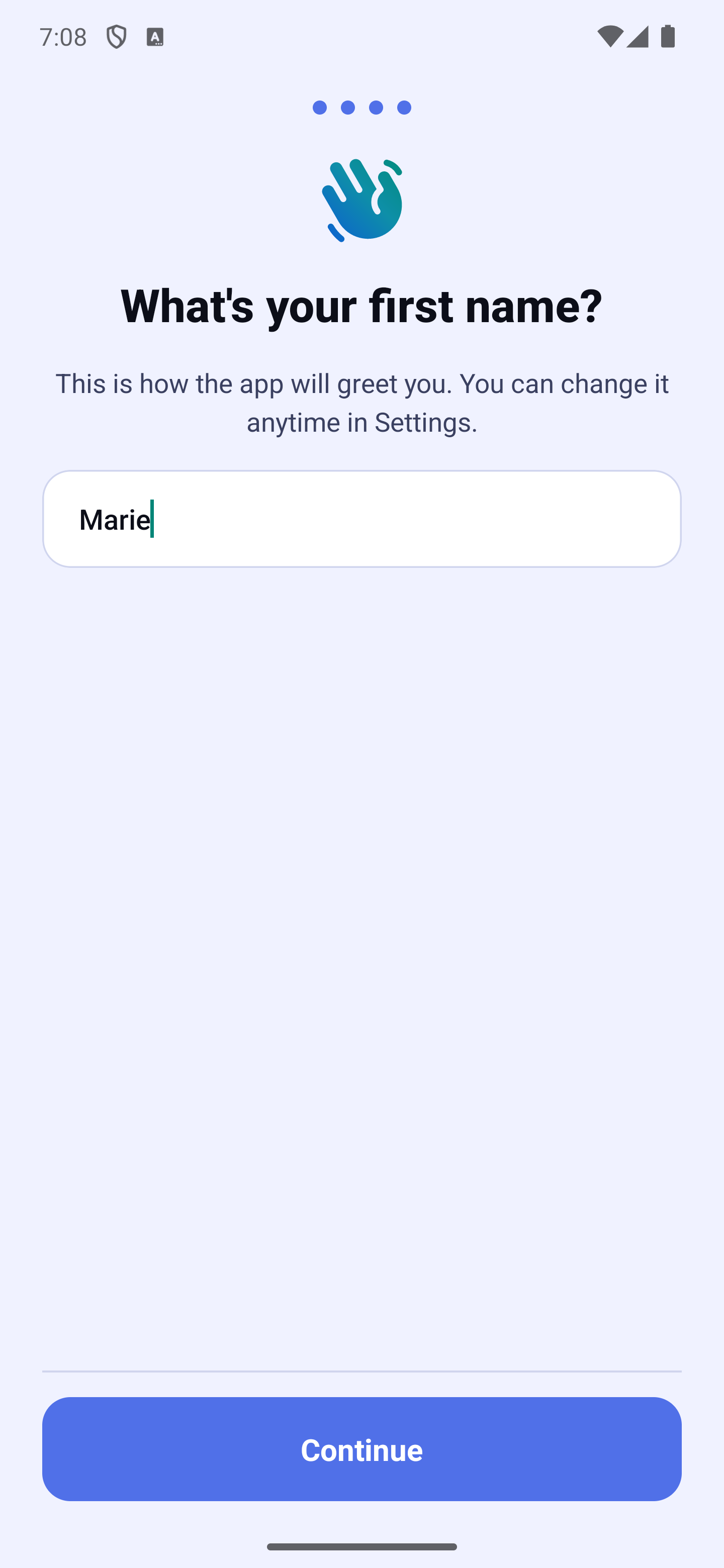
4. Your first name
Home will greet you by this name. You can change it anytime in Settings.
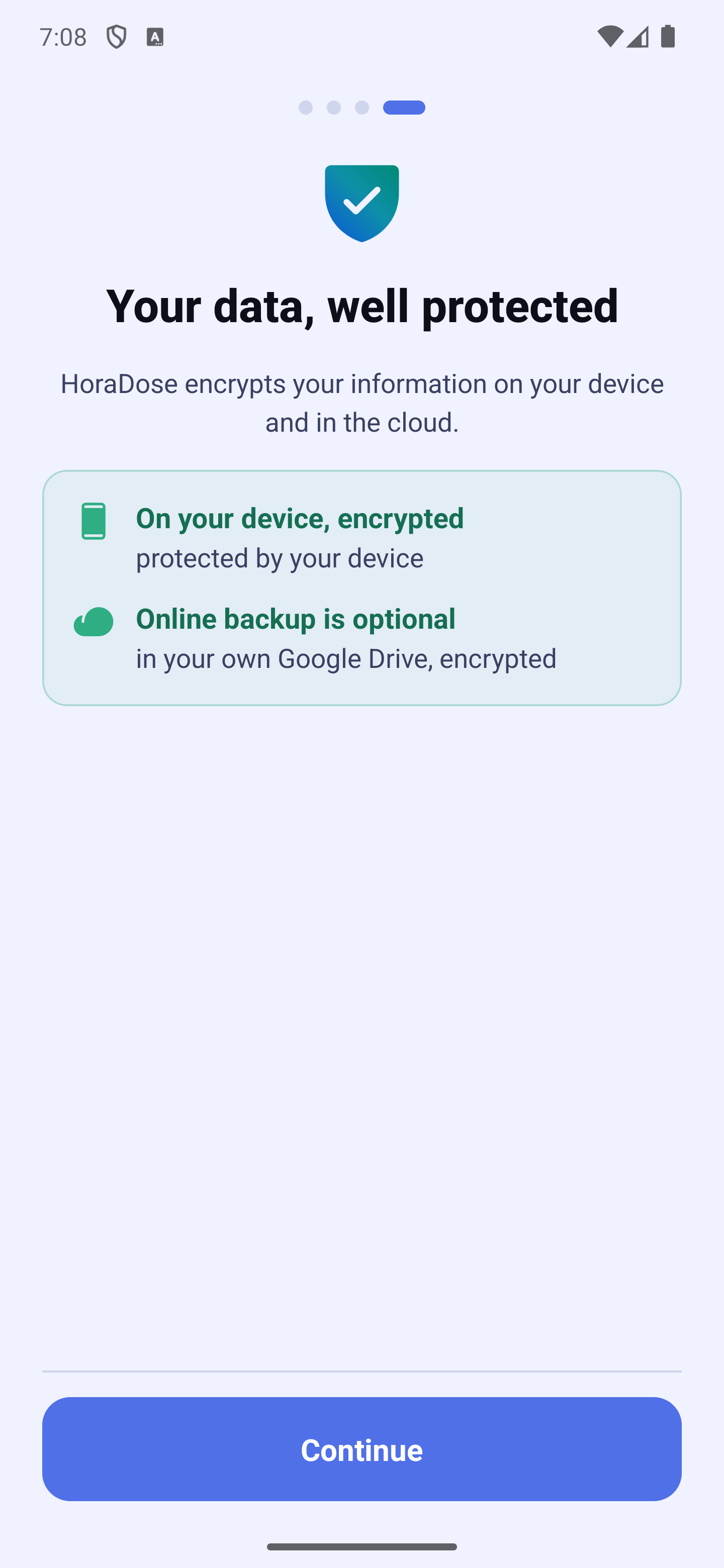
5. Your data, well protected
Your information is encrypted on your phone. Online backup is optional; if you turn it on, it is encrypted too, in your own iCloud (iPhone) or Google Drive (Android).
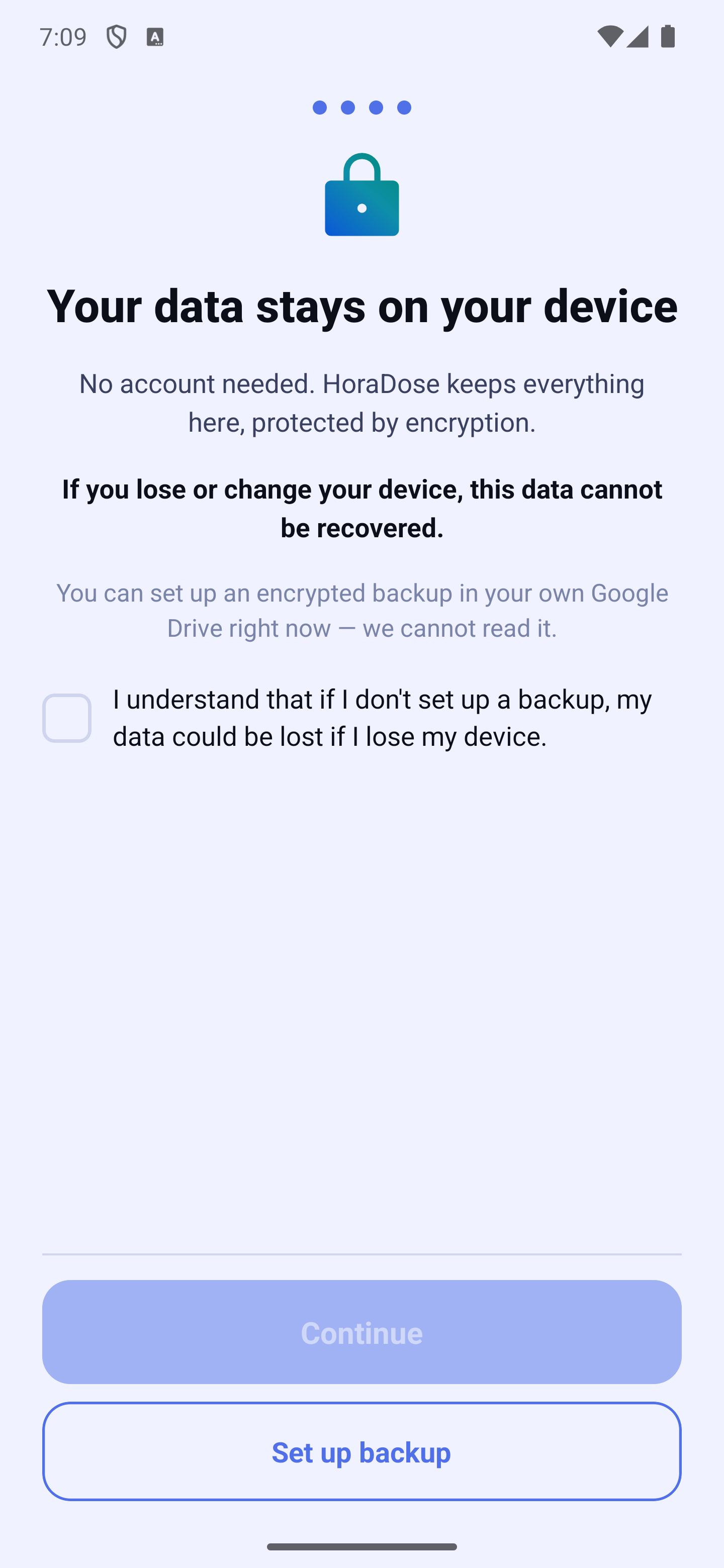
6. "Your data stays on your device"
This screen tells you plainly what happens without a backup: if you lose or change your phone, your data cannot be recovered. Two choices:
- "Set up backup" — to set it up right away;
- or tick "I understand that if I don't set up a backup, my data could be lost if I lose my device", then tap "Continue".
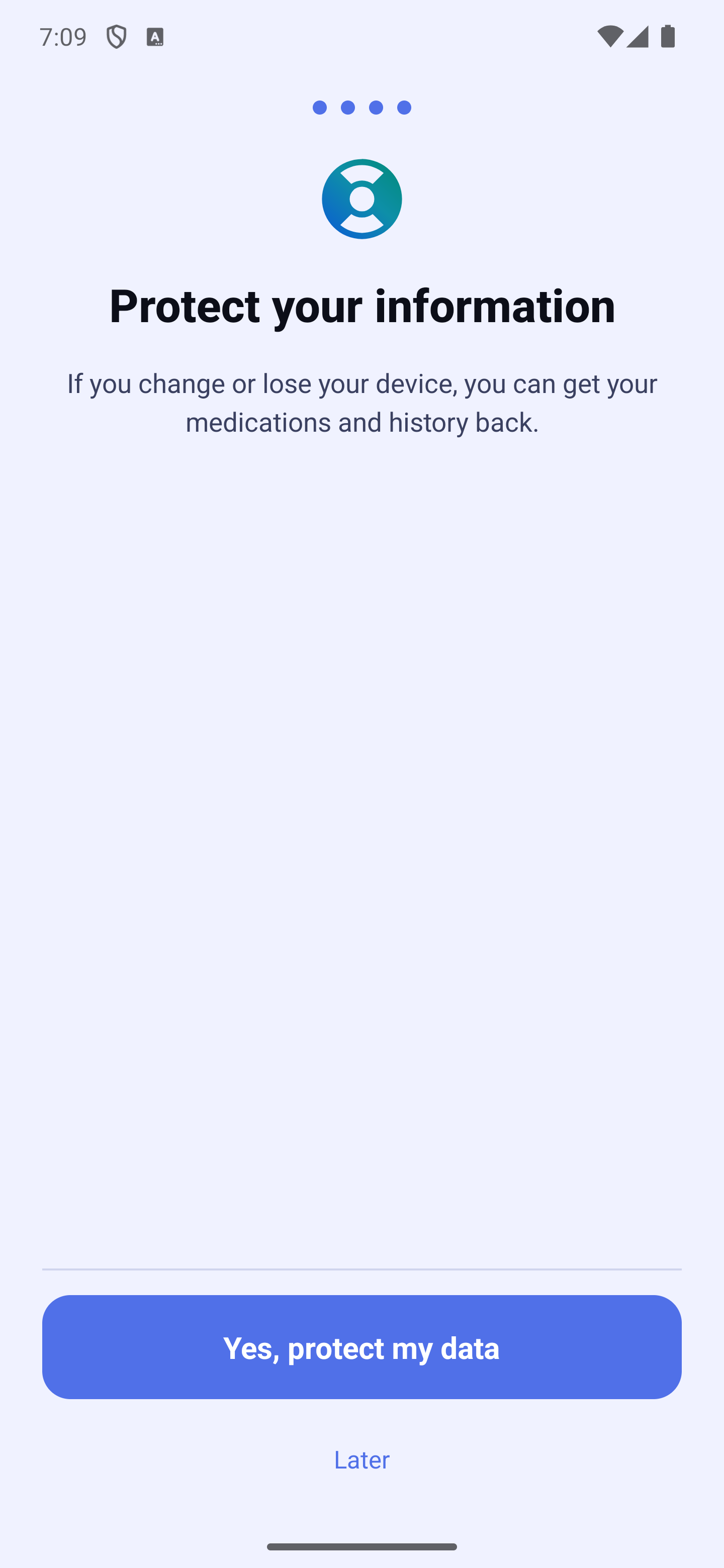
7. "Protect your information"
HoraDose offers backup one last time: "Yes, protect my data", or "Later". As long as no backup is active, a discreet banner reminds you at the top of Home.
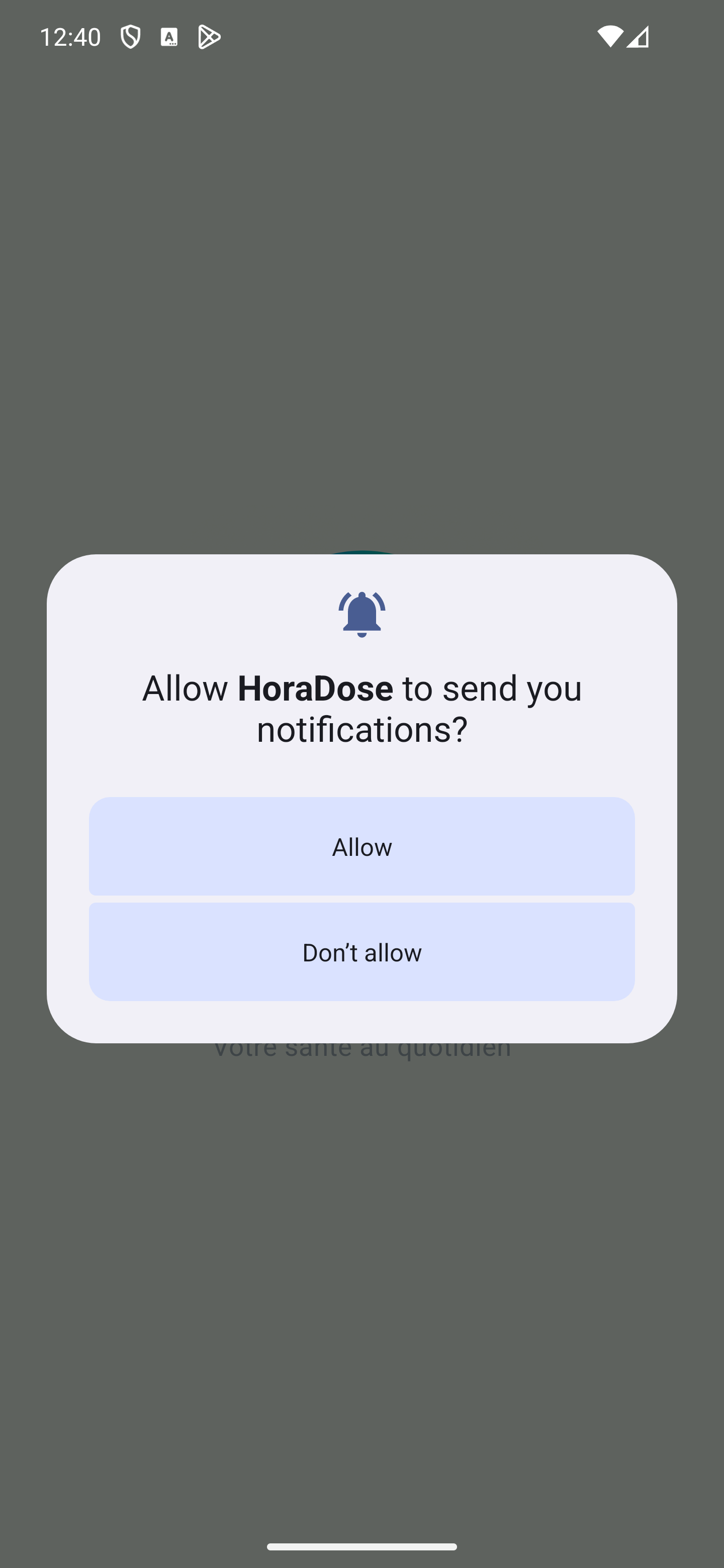
8. Notifications
Your phone asks whether HoraDose may send notifications. Accept: this is what lets dose reminders ring.
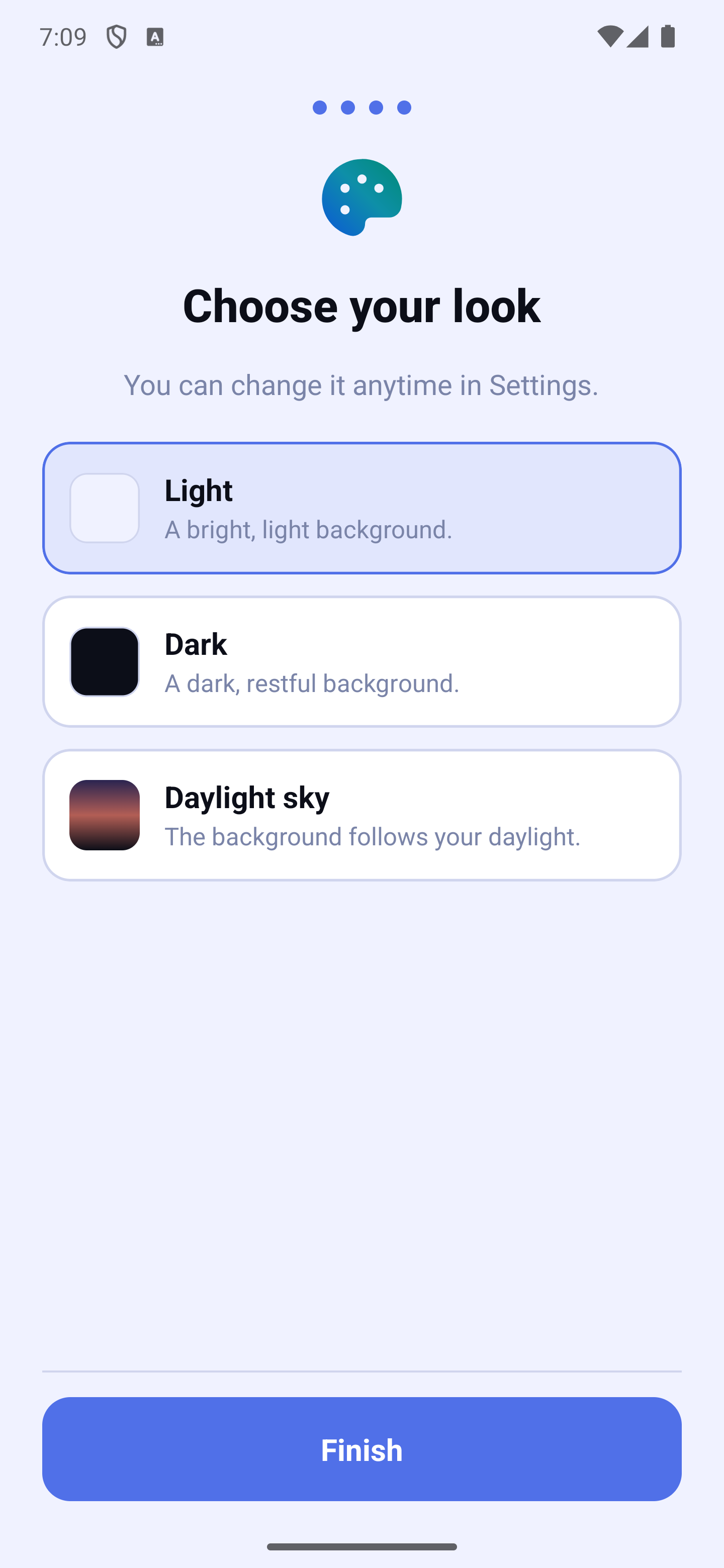
9. Appearance
Choose Light, Dark or Daylight sky (the background follows your daylight), then tap "Finish". You can change your mind in Settings.
You then reach Home, where the trial-version notice appears (see the Home Screen section).
What if I change phones?
Since there is no account, nothing follows you automatically. Turn on backup (Settings → Google Drive backup or iCloud backup) and keep your 24-word recovery phrase safe: it is what lets you get everything back on a new phone, with "Restore my data" on the first screen.