Meal Settings
Fixed time or after a medication, reminders, home panel
Accessing Meal Settings
Settings → ME → My meals
Every Day
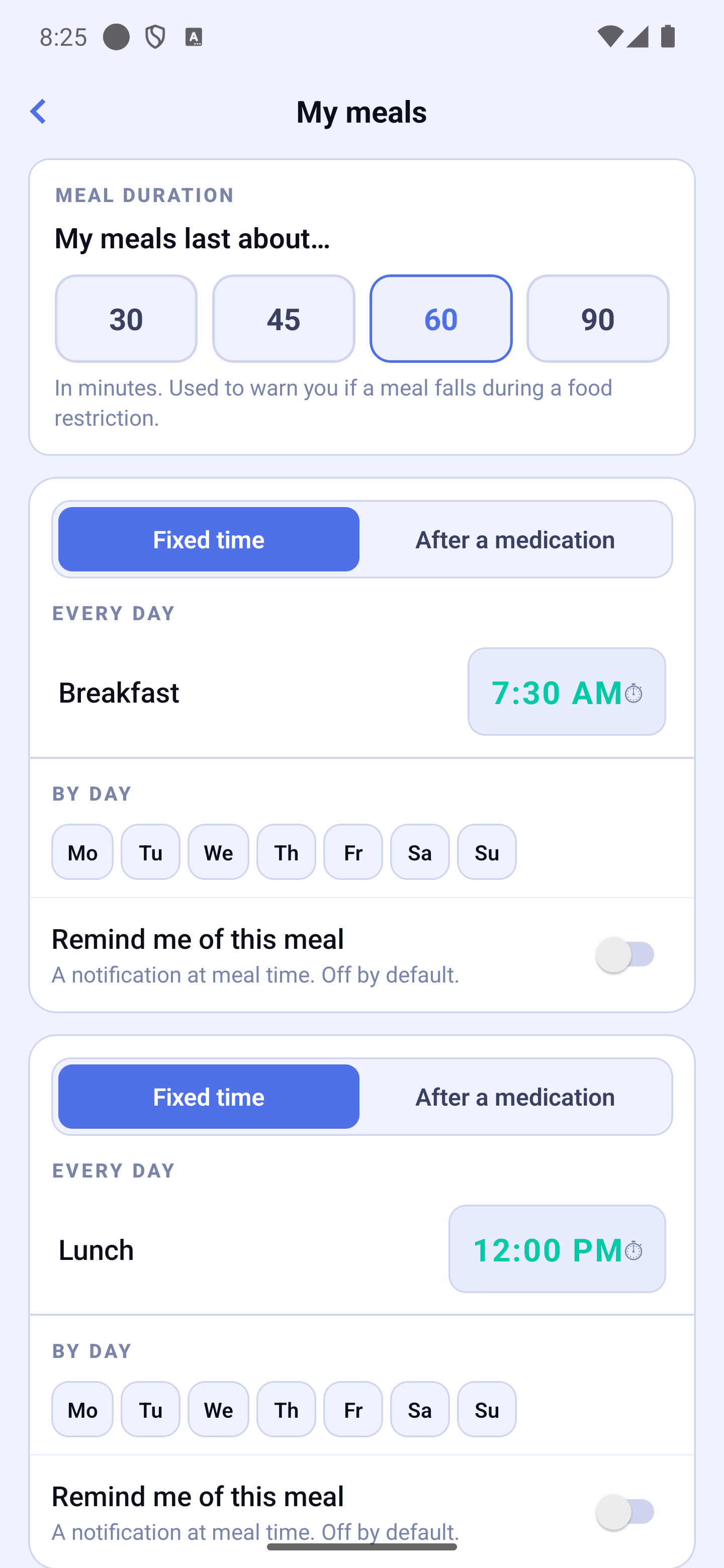
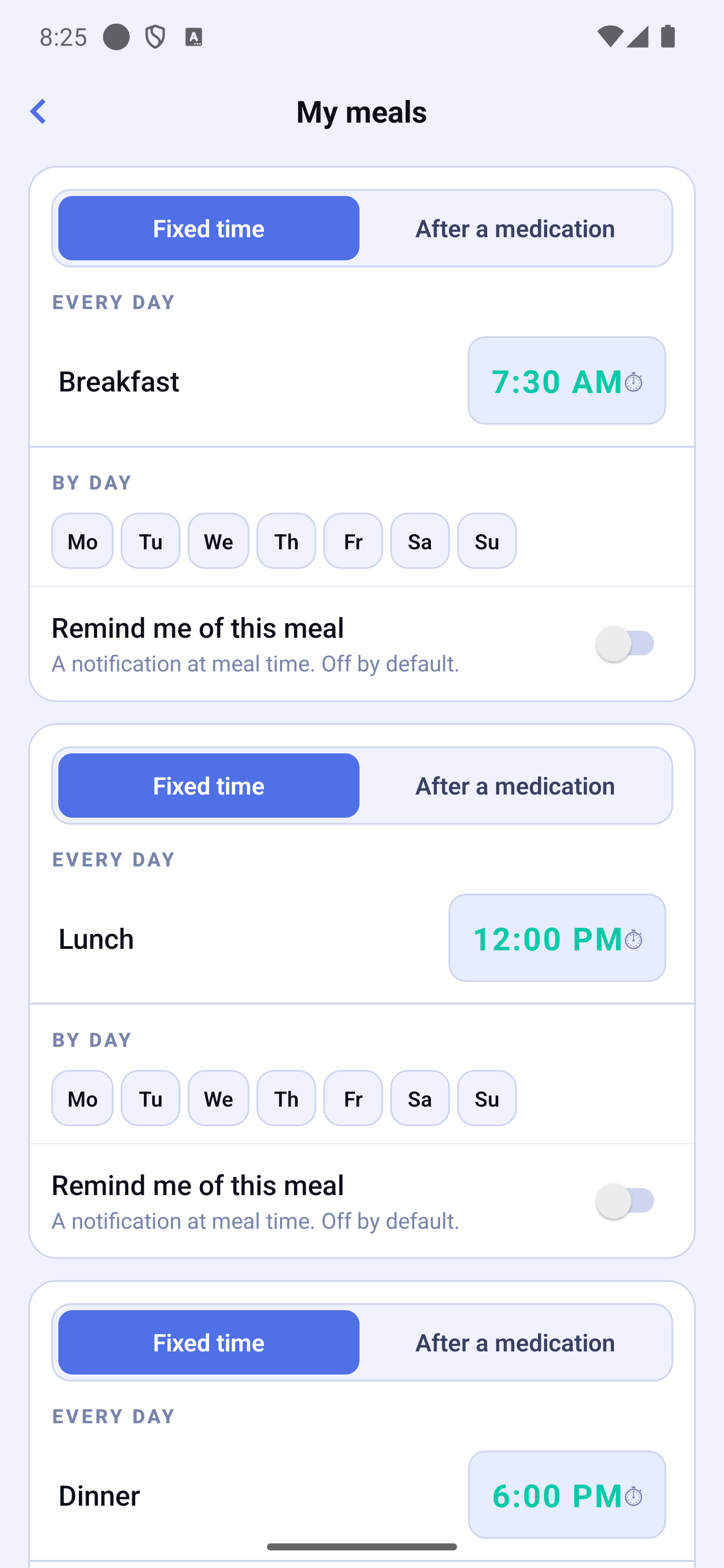
Each meal card (Breakfast, Lunch, Dinner) has an EVERY DAY section at the top with a time picker for the usual mealtime. Changes here apply every day unless overridden.
By Day
The BY DAY section lets you set exceptions for specific days of the week (e.g., brunch on Sundays):
- Tap one or more days (Mo → Su).
- A time picker appears — choose the desired time.
- Tap Apply.
Days with a custom time appear in orange with the time shown below. To remove a custom time, long-press the orange day chip and confirm.
Today's Adjustment
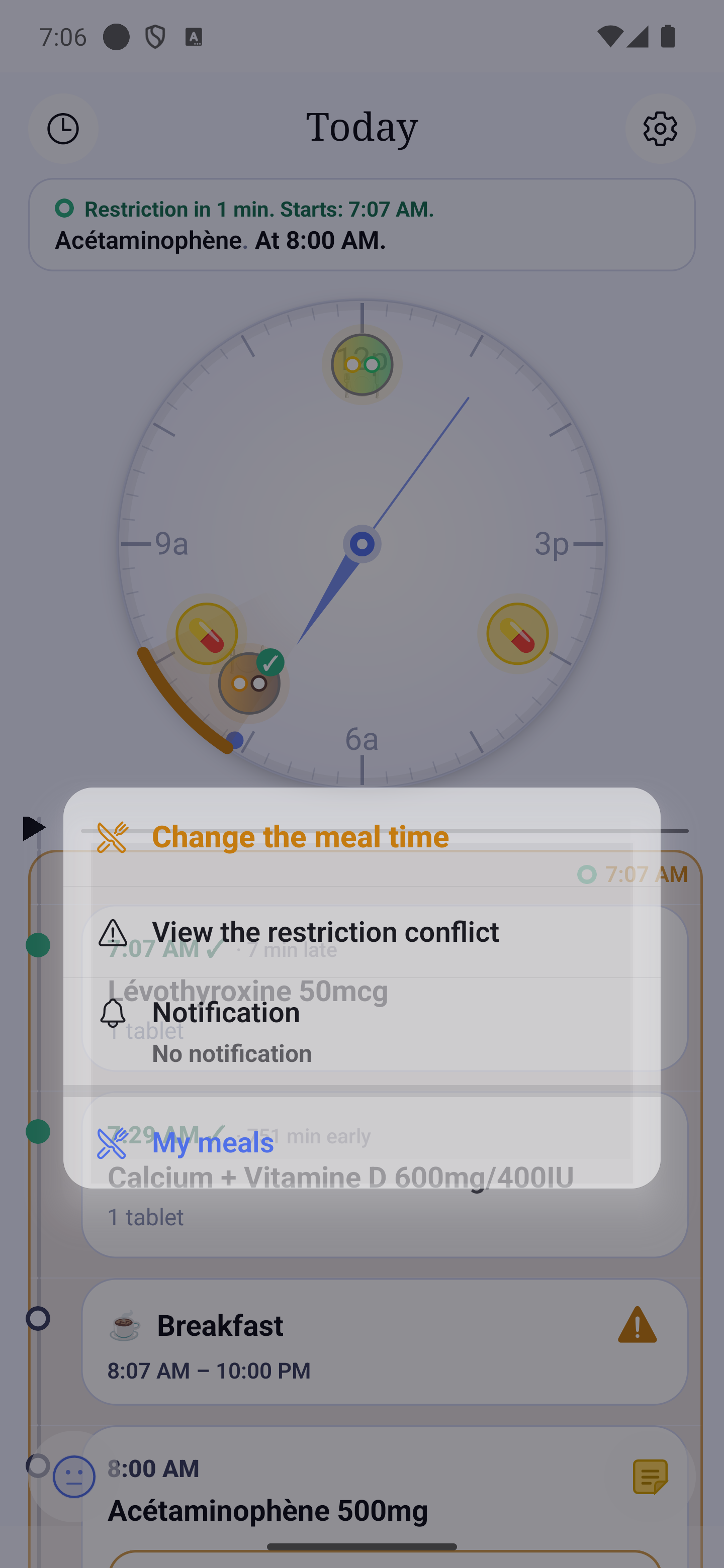
Your meals show as tiles in the Home timeline. Tap a meal's tile to open its menu: "Change the meal time" (for today only), "View the restriction conflict" (when there is one), "Notification" and a shortcut to My meals.
Propagation to meal-linked medications
When you change a meal time, medications scheduled relative to that meal automatically move on the clock and in your journal. Only doses that haven't happened yet move: doses already taken, past or not confirmed stay locked at their original time — your history is never rewritten.
| Dose status | Effect |
|---|---|
| 🔵 Upcoming | Time updates |
| 🟢 Taken | Stays at the time it was taken |
| ⚪ Past | Stays at the original time |
| 🔴 Not confirmed | Stays at the original time |
Meal "After a medication"
Each meal card offers two modes at the top: Fixed time (the usual behavior, with "By day" exceptions) or After a medication. In "After a medication" mode, the meal time is computed every day from an intake of one of your medications taken every X hours: pick the medication, the intake (e.g. intake #2 · 6:30) and the delay (e.g. 30 min after). The computed time is always shown in the card.
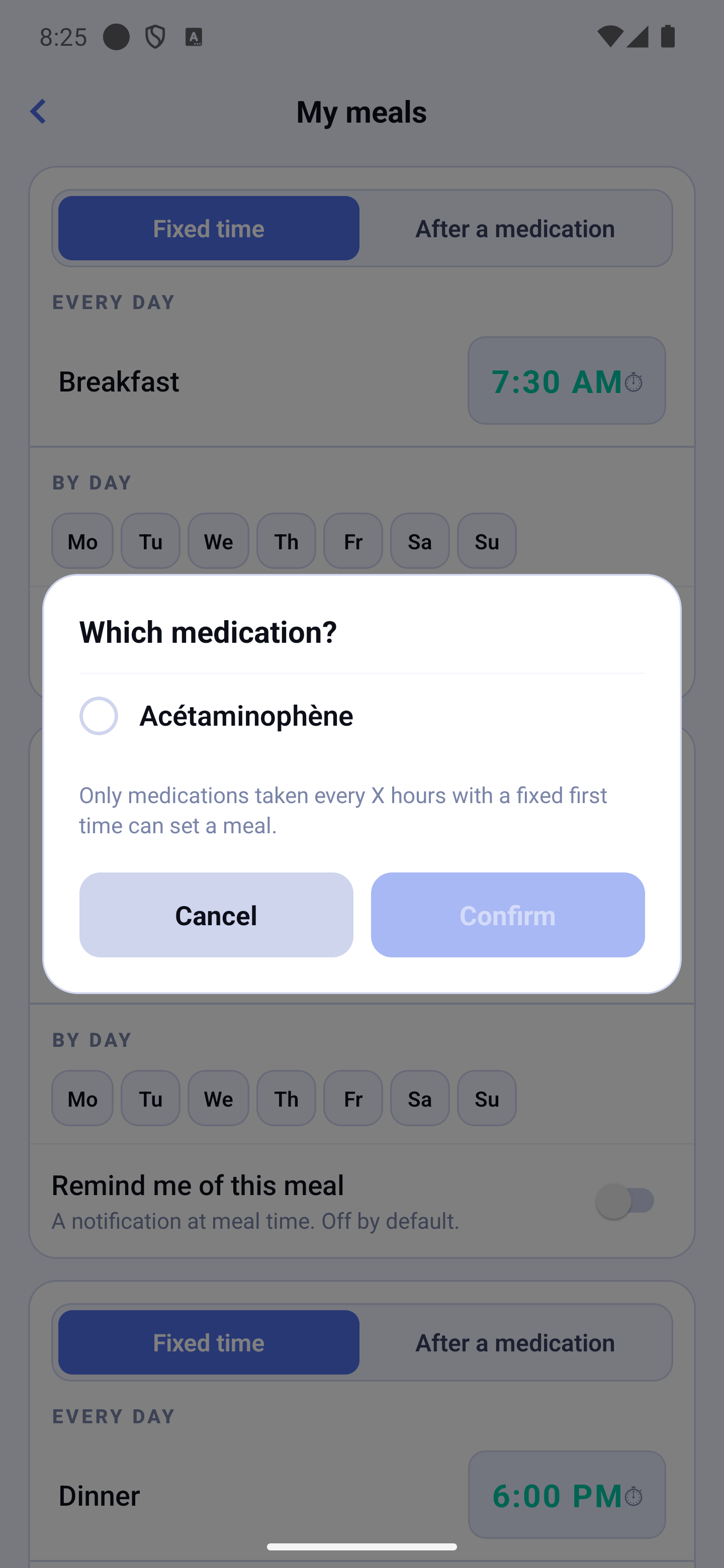
- If you take your medication earlier or later, the meal time follows automatically — along with the medications tied to that meal.
- On days when no intake fits (medication paused, for example), the meal falls back to its backup time — the fixed time shown in the card.
- The today adjustment ("Change the meal time" from the tile) always has the last word for today.
Meal, wake-up and bedtime reminders
Each meal card has a "Remind me of this meal" switch (off by default). When on, a notification alerts you at meal time — including the computed time in "After a medication" mode.
From Home you can do the same for every marker of your day, including waking up and bedtime: tap the marker's row, choose "Notification", then set the two switches:
- Reminder — a notification at the marker's time. Off at first: the marker stays silent until you turn it on.
- Ring even when silenced — the reminder rings even when the phone is on silent or Do Not Disturb. Only available when the reminder is on. The first time, the app explains what that means and asks for your agreement.
The switches apply right away; Close closes the window.
The choice applies every day until you change it. You can also make it from your Apple Watch, in the screen that opens when you tap the marker.
Meal panel on Home
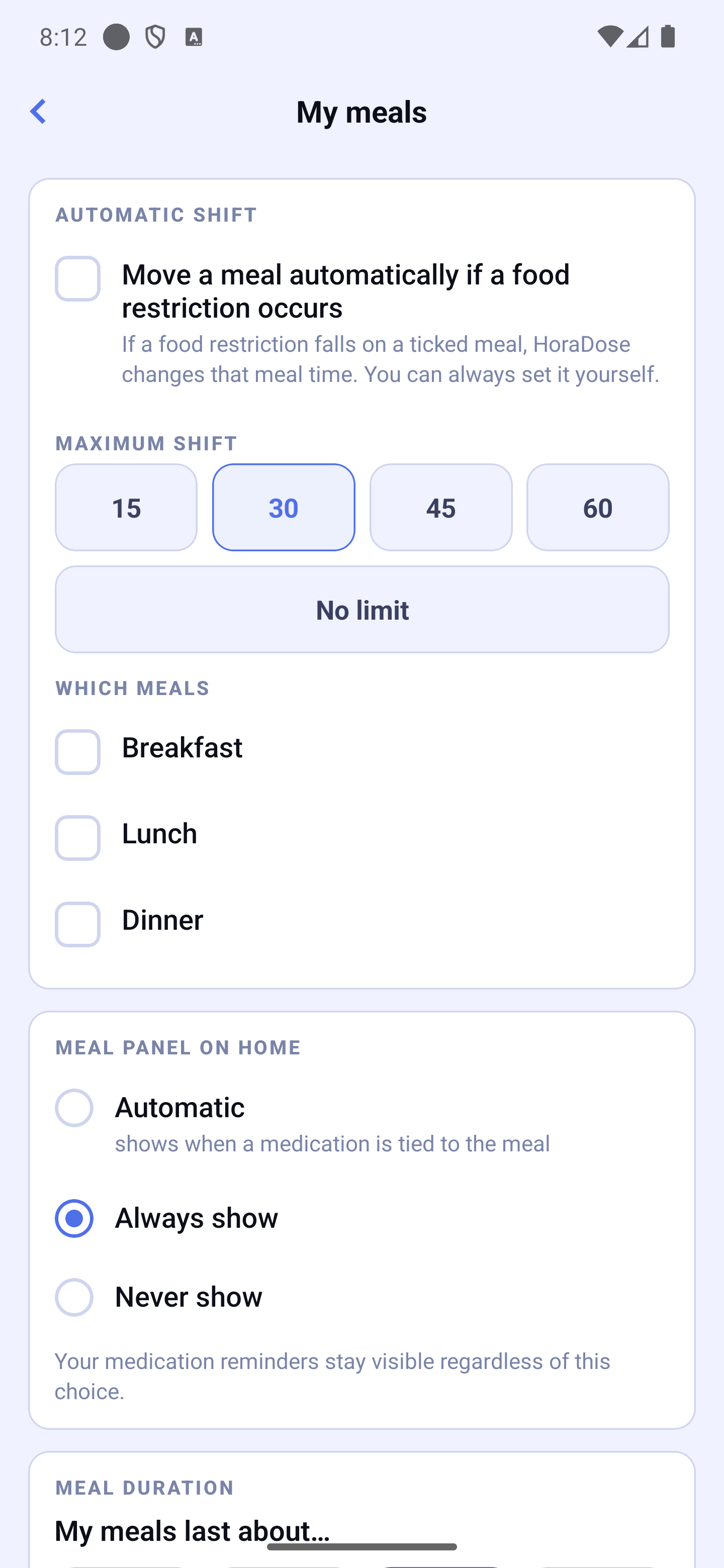
At the top of the My meals screen, choose when the meal panel appears on Home: Automatic (when a medication is tied to the meal — the usual behavior), Always show or Never show. Your medication reminders stay visible regardless of this choice.
New "after a meal" formula
A dose scheduled "after a meal" now counts from the meal's end (start time + the duration set below), rather than its start. Example: a medication "30 min after lunch", with lunch at noon and a 60-minute duration, is now due at 13:30 (meal end 13:00 + 30 minutes) instead of 12:30. "During" and "before" a meal doses are unchanged.
Meal duration
Below that setting, the Meal duration card (« My meals last about… ») lets you set how long a meal usually lasts — 30, 45, 60 or 90 minutes (60 by default). It is a global setting (the same for every meal) and is only used to warn you if a meal falls during a period when a medication must be taken away from food (food restriction).
Food-restriction warning
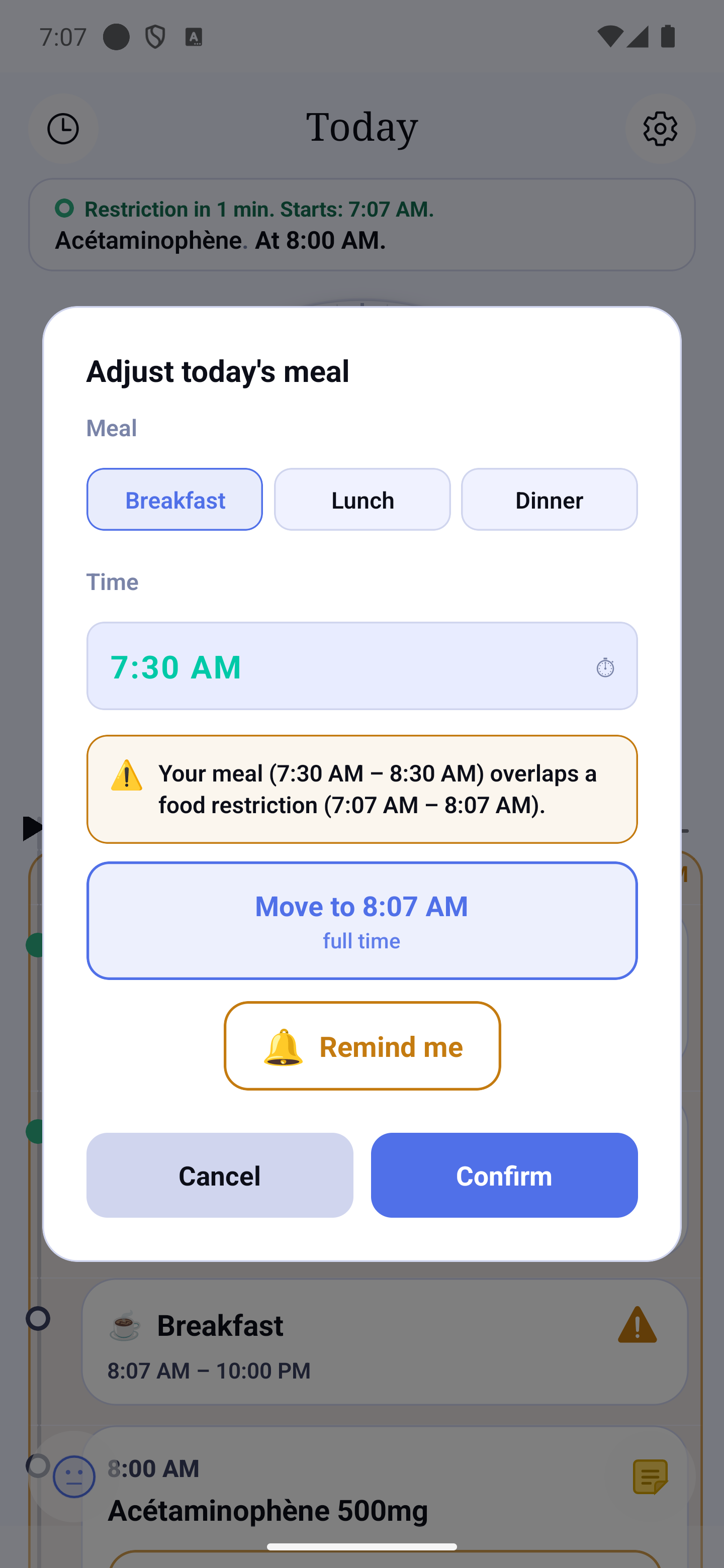
If a meal time falls during a medication's food restriction, the meal's tile carries an orange ⚠ on Home: this meal falls during a food restriction. It is purely informational — you can always keep your time.
Tap the meal row on Home to adjust it. If the chosen time falls during a restriction, the dialog shows — right under the time wheel — a short explanation and one or two suggested times, just before or just after the restriction. Tapping a suggestion sets the time in the wheel; Confirm is what commits it (keeping your time = Cancel). The app never changes your medication times, only the meal time if you accept. A « Remind me » button can also alert you when the restriction ends. The same suggestion appears in My meals once you pick a conflicting time.
Moving a meal automatically
At the top of My meals, the Automatic shift section holds the whole setting. Tick « Move a meal automatically if a food restriction occurs » (unticked to begin with) to let HoraDose change a meal's time on its own when a restriction lands on it — for instance because you confirmed a dose late and the no-food period moved with it. It applies right away: a meal already sitting inside a restriction when you tick the box is moved immediately.
You then choose the maximum shift: 15, 30, 45, 60 minutes (30 by default) or No limit. That is the furthest the meal may stray from its planned time, in both directions — earlier as well as later. Beyond it, HoraDose does not decide for you. If you pick more than 30 minutes, a warning reminds you that a delayed meal can lower blood sugar in people treated for diabetes: talk to your pharmacist or your doctor if that is your case. The meal always stays within its usual range (a lunch stays a lunch) and between your wake and bed times.
Finally, three tick boxes say which meals are covered: breakfast, lunch, dinner. Unticking all three turns the feature off.
What it will never do on its own: touch a meal whose time you set today; move a meal that has already started; put you in a slot too short to eat; take the meal outside its usual range; or move a meal when doing so would also shift a medication taken with that meal — there, it asks you.
When a meal is moved, a message appears: « Lunch moved from 12:00 to 12:06 (food restriction). Your medications follow. » If you confirmed the dose from your watch or from the notification, the message is shown the next time you open the app. The meal's real time stays visible at all times on the Home timeline. You can always set the time yourself for the day — your choice then stands.