Reports
Prepare a document for your doctor
Reports
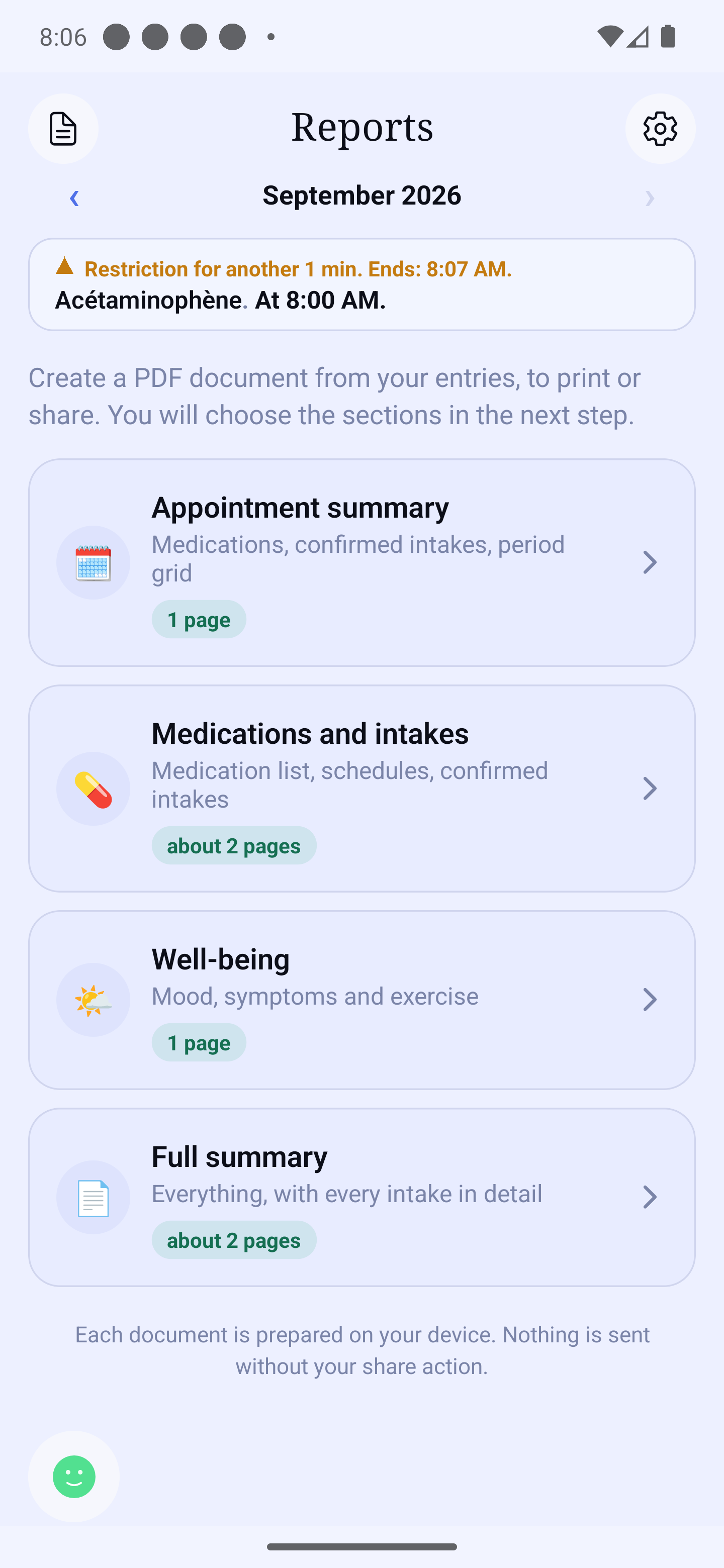
The Reports module prepares a document for your doctor, to print or share. Open it with 🕐 → Reports on Home.
Prepare for my appointment
The large "Prepare for my appointment" button creates the shortest document: your note, your medications and your confirmed doses, usually on one page. First choose the period at the top of the screen.
Under "Add to the summary", you can tick what is added after the first page (for example the appendix with every dose in detail); each row says how many pages it adds.
Other choices
Tap "Other choices" to see three other documents — each one shows its page count:
- Medications and dose times — the list, the confirmed doses and the dose times;
- Mood, symptoms and activity — with your medication list and the month mood grid;
- Detailed report (several pages) — the appointment page, then every dose in detail, your situations and your journal notes.
"Choose the sections myself" opens the list of sections, in two groups: "On the appointment page" and "Following pages". Tap a section to tick or untick it; a counter shows how many pages will print. Over a long period, the "Summarize the intake log" box keeps monthly totals instead of every single dose. Then tap "Create the document".
What the first page contains
- Your note for the doctor and your questions, at the top — tap "My note for the doctor" on the Reports screen to write it.
- Your medication list, to compare with the pharmacy's: strength, form, amount per dose, times, food restriction and start date. A medication stopped during the period is listed with its last scheduled dose.
- The confirmed doses, day by day, in a grid: ✓ every dose of the day confirmed, ○ at least one dose not confirmed (or 1/2: one dose confirmed out of two scheduled), – no dose scheduled that day, or a day before tracking started in HoraDose. For an "as needed" medication, the square gives the number of doses recorded that day.
- The dose times (earliest, latest, and how many were taken within 15 minutes of the scheduled time — an app convention, not a medical standard), mood and symptoms, and the changes recorded during the period (additions, stops, names, strengths, times, amounts).
If a medication changed name during the period, it keeps a single name in the document; the former name is recalled in a note. The detail of every dose, in the appendix, keeps the name as it was recorded that day.
Mood in the document
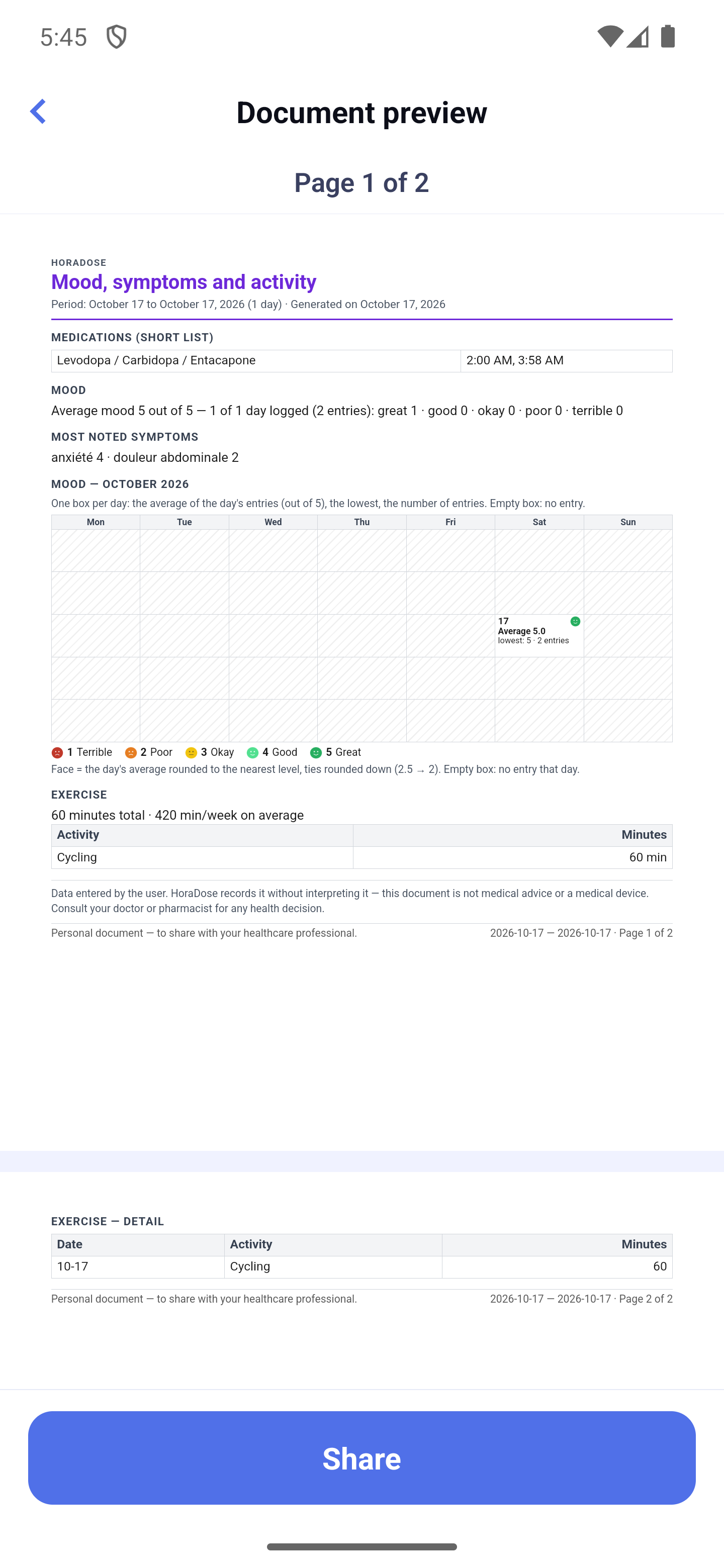
In "Mood and symptoms", the mood sentence gives the scale and the number of days logged, for example "Average mood 3.4 out of 5 — 12 of 30 days logged (18 entries)"; with fewer than three days logged, it says "Not enough days logged over the period." Documents that contain this section, except the one-page summary, add the month mood grid: one box per day, with the face of the day's average, "Average 3.4" and "lowest: 2 · 4 entries"; an empty box means no entry that day; a legend gives the five faces with their figure and their name. The figures say it all: the grid also reads in black and white, and no box is cut off.
The "Situations" section
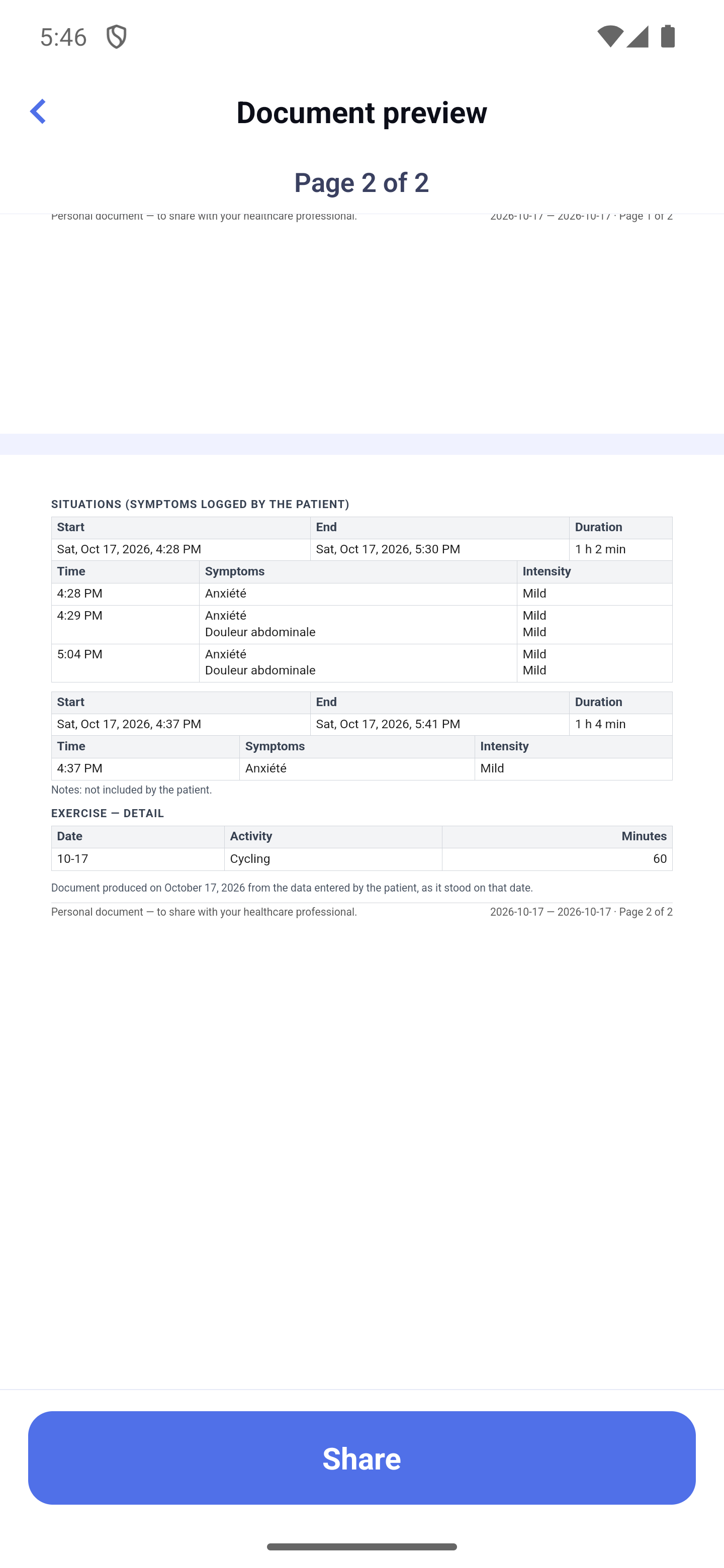
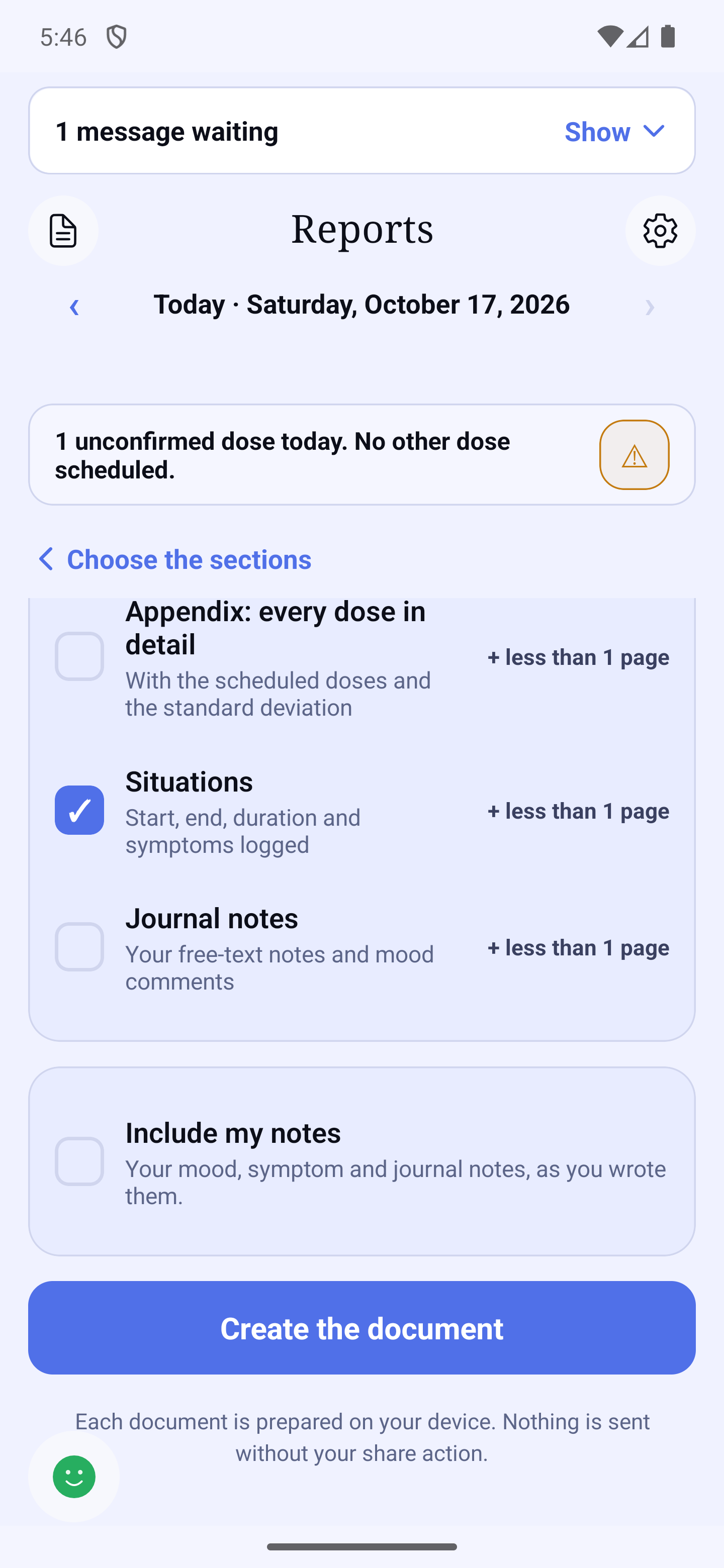
In "Choose the sections", the "Situations" section ("Start, end, duration and symptoms logged") sits between the appendix and "Journal notes". It is ticked in the Detailed report only. Each situation is a small table: Start, End (or "Ongoing as of" followed by the date of the document), Duration — "Duration not confirmed — last observation on … at …" when more than 12 hours have passed without an observation —, then one line per observation with the time, the symptoms and the intensity in words (Mild, Moderate, Severe). Beyond six observations, only the first, the last and those that change are printed, with their count. One-time entries form a small "Symptoms logged outside a situation" table. The section never links a symptom to a dose, and every page that carries it ends with "Document produced on … from the data entered by the patient, as it stood on that date."
"Quick notes" in the document
In "Choose the sections", the "Quick notes" section ("Your measurements and quick notes, summarised") sums up your quick notes for the period. It is ticked in "Mood, symptoms and activity" and in the Detailed report. It carries this definition: "Values typed in by the patient in the app, not transmitted by a measuring device."
It has one line per note, in the order of your "My quick notes" list. The short text you wrote is printed only if "Include my notes" is ticked.
The "Appendix: recorded measurements" section ("Each measurement, with date, time and unit") is optional: you tick it yourself. It lists each measurement.
"Include my notes"
On the "Choose the sections" screen, the "Include my notes" box ("Your mood, symptom and journal notes, as you wrote them.") is unticked by default. Unticked, none of the notes you wrote (mood, symptoms, journal, exercise) is printed, and the document says so: "Notes: not included by the patient." Ticked, they are printed as written. Your note for the doctor keeps its own section.
Check before sharing
Before sharing, the "Your document" screen shows the first page exactly as it will print. Under the thumbnail, the sentence "Tap the document to see all of it before you share it." reminds you that the thumbnail is a button. Three boxes decide what appears on it, and your choice is remembered for next time:
- "Show my name on the document";
- "Show my date of birth" (if you added it in Settings);
- "Show my conditions" (if you chose one in the app).
If your last name is not saved yet, the "Add my name in my profile" link replaces the name box: the document then carries no name. The link lets you add it without leaving the screen; the box appears afterwards. Then tap "Share" or "Print". "Change the sections" takes you back to the list of sections. Each page carries "Page N of M" at the bottom, with your name (if you chose it) and the period. Times follow your time setting (12-hour or 24-hour), and the paper follows your region: Letter in Canada, the United States and Mexico, A4 in France and most other countries.
Seeing the whole document: "Document preview"
Tap the document's thumbnail: the "Document preview" screen opens. It shows every page of the document at full width, one under the other; scroll to go through them. Under the title, "Page 1 of 2" (for example) tells you which page you are reading. You can also pinch with two fingers to zoom in, but the pages are already readable without zooming. The "Share" button stays at the bottom of the screen and shares exactly the same document. "Print" stays on the Reports screen. To go back, use the back arrow at the top: you return to the Reports screen where you left it. With a screen reader, the thumbnail is announced as a button: "Open the document preview".