Adding or editing a treatment
The 5-step assistant: the medication, food instructions, when to take it, the times, the duration
The 5-step assistant
Tap "New treatment" in "My treatments", or tap a medication's card to edit it ("Edit the treatment"). The assistant guides you in 5 steps; the top line says where you are ("Step 1 of 5 · The medication"). Move on with "Next", go back with "Back". The ✕ at the top left closes the assistant: if you changed something, the app first asks "Discard changes?".
Step 1 — The medication
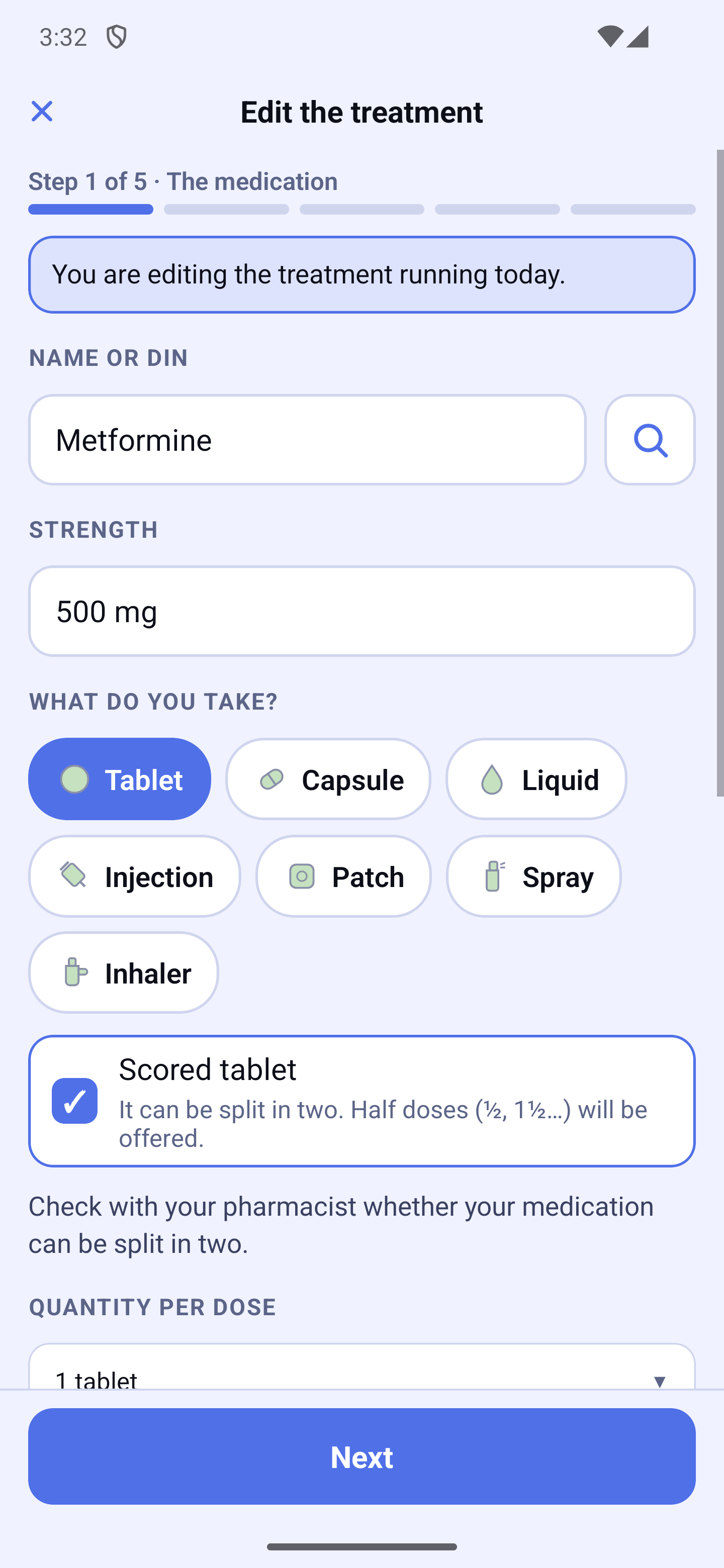
- Name or DIN — type the name, or tap the magnifier to search for the medication (see below). If the name looks like a medication already in your list, a warning asks you to check that it is not the same one, to avoid a double dose.
- Strength — tap the strength offered, or "Other" to type it yourself (e.g. "100 mg"). Check that it matches the one on your box or your prescription.
- What form is your product? — Tablet, Capsule or Liquid; tap "Other forms…" to see the others: Cream or gel, Ointment, Lotion, Drops, Shampoo, Injection, Patch, Spray and Inhaler (see "A skin product, drops or a supplement" below).
- Scored tablet (for a tablet) — tick it if your tablet can be split in two: half doses (½, 1½…) will be offered, and the medication's icon shows a line across the middle. Check with your pharmacist whether your medication can be split.
- Quantity per dose — how much you take each time (1 tablet, ½ tablet, 5 mL…), as prescribed by your doctor. If the quantity depends on the time of day, you will set it at step 4.
- Reminders and Ring even when silenced — two switches, under the quantity: "Reminders" (on by default) decides whether this medication sends its dose reminders; "Ring even when silenced" (off by default, available only when "Reminders" is on) makes them ring even on silent or in Do Not Disturb (see the "Ring even when silenced" section). They also show when you tap "Edit the name, strength or appearance" from a medication's menu, and reflect the same value as in Settings → Notifications & reminders.
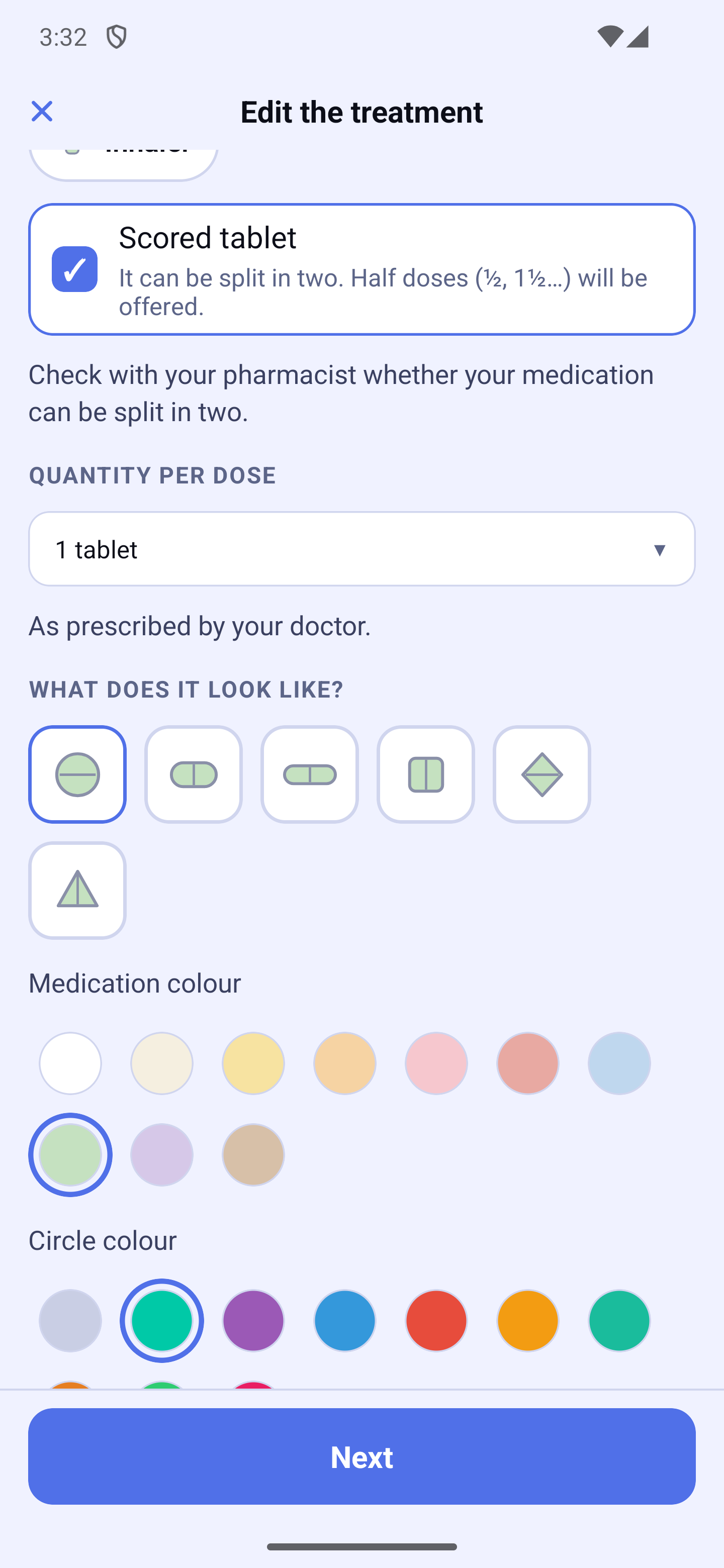
- What does it look like? — the icon's shape, the medication colour (and the other half's colour for a capsule) and the circle colour around it. A preview shows the result. This icon helps you recognise the medication at a glance, on Home as on the watch.
Finding a medication
The magnifier opens "Find a medication". Type the name or the DIN (the identification number printed on the box or on the pharmacy label), filter by category if needed, then tap the medication in the list: its name and strengths are filled in for you. For some medications, a food restriction is filled in too: check it at step 2.
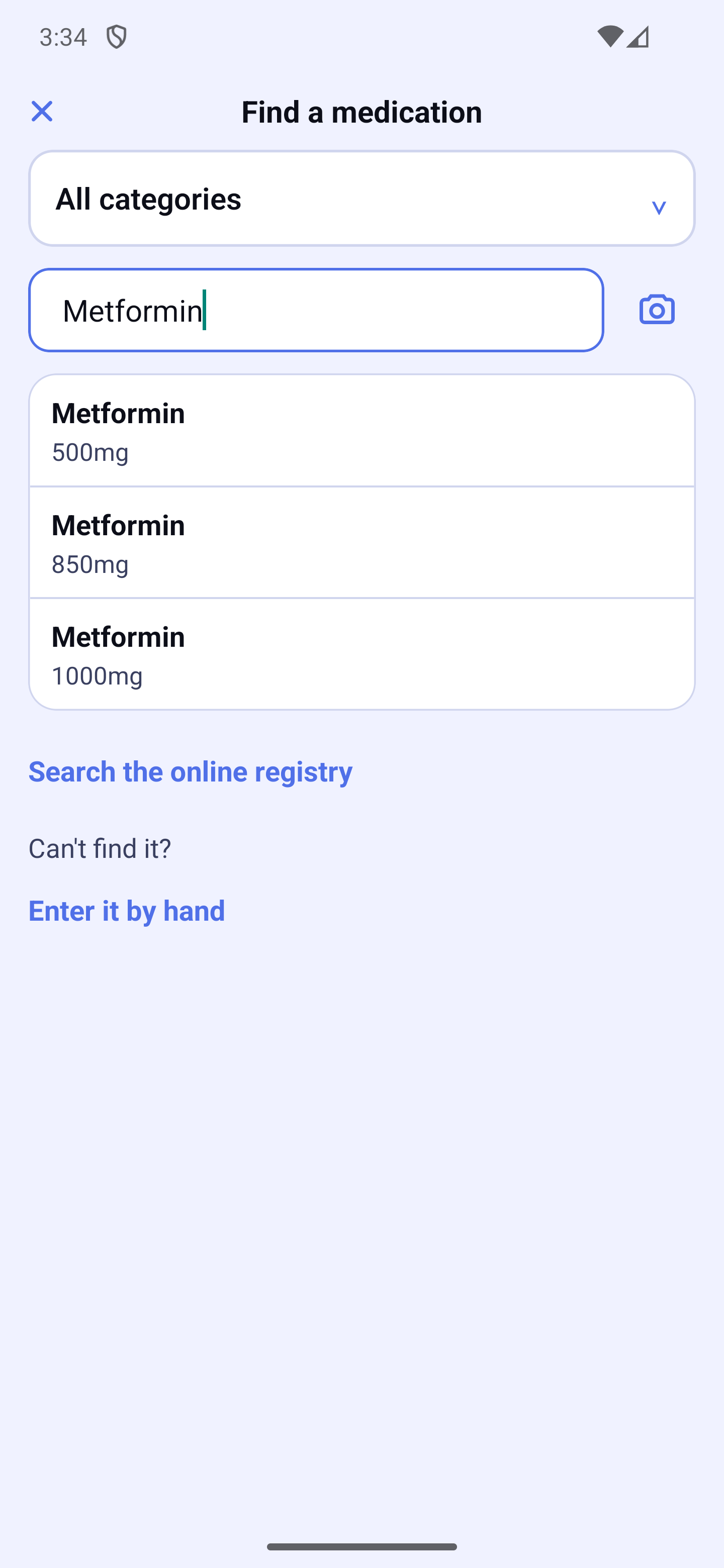
- "Search the online registry" — also searches the official medication registry (Health Canada's in Canada, the US registry in the United States). Only the name you typed is sent, nothing else. You can turn this search off in Settings → Health APIs.
- The camera 📷 — photographs the label to read the DIN. The reading happens on your phone. If it fails, type the DIN yourself.
- "Enter it by hand" — if you cannot find your medication.
A skin product, drops or a supplement
A cream, an ointment, a lotion, drops or a shampoo are added with the same assistant, for free, like a medication. Choose the form under "Other forms…"; the quantity is counted in applications (cream, ointment, lotion, shampoo) or in drops.
- "Where?" — for drops, choose where they go: Left eye, Right eye, Both eyes, Left ear, Right ear, Both ears, Left nostril, Right nostril, Both nostrils or By mouth. This choice is required: nothing is chosen in advance, and "Next" stays inactive until you choose (a sentence reminds you). The side then shows in full on your reminders, on Home, on the watch and on the widget. For a cream, an ointment, a lotion or a shampoo, you can type the place in a few words (40 characters at most, optional), for example "elbows".
- Food instructions — for a product that goes on the skin, the scalp, in the eye, the ear or the nose, step 2 is skipped: the assistant then counts 4 steps. Drops "By mouth" keep step 2. If you change a tablet into a cream, its instructions are not erased, but they do not apply while the product is not taken by mouth.
- The button and the confirmation sheet — on Home, the button says what to do: "Apply", "Put in the drops", "Use the shampoo", "Give the injection", "Apply the patch", "Spray" or "Inhale". The sheet that opens carries the product's name (for example "Apply Diprosone"), the quantity and the place, then the "Done" button. When the same moment mixes a tablet and a product, the button says "Done" and the sheet, titled "To do at 8:00 PM", recalls under each name what to do.
- Vitamins and supplements — they are added like a medication. The magnifier offers a "Vitamins and supplements" category (vitamin D3, vitamin B12, iron, omega-3, magnesium). The app suggests no instruction: only the ones you enter count. A supplement in drops is entered with the "Drops" form and "By mouth".
Step 2 — Food instructions
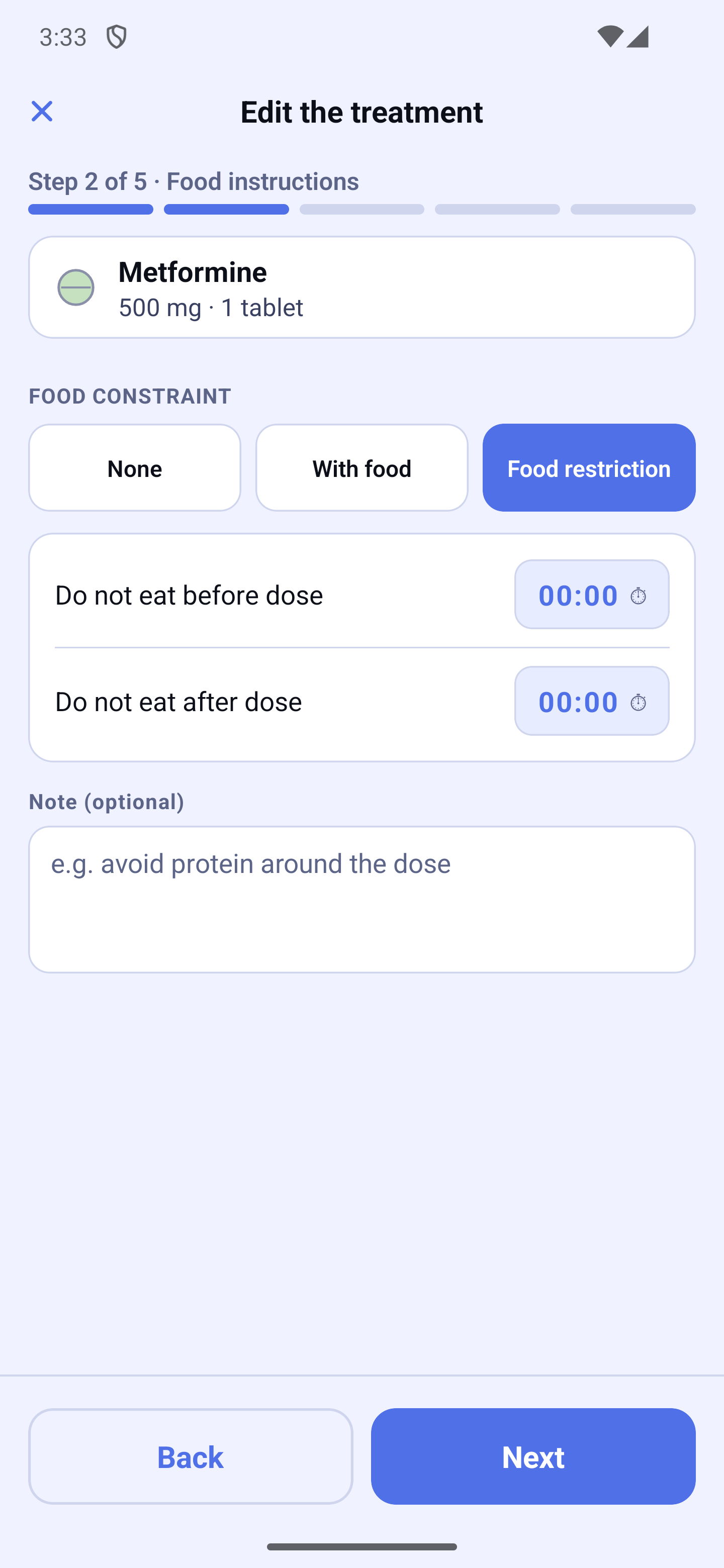
Three choices, one at a time:
- None;
- With food — the medication is taken while eating;
- Food restriction — enter how long not to eat before the dose and not to eat after the dose. A "Note (optional)" box lets you add a few words, for example "avoid protein around the dose" (120 characters at most). Home then shows the restriction zone and the window when you can eat.
If you change your choice while a restriction is filled in, the app first asks "Remove the food restriction?".
Step 3 — When to take it
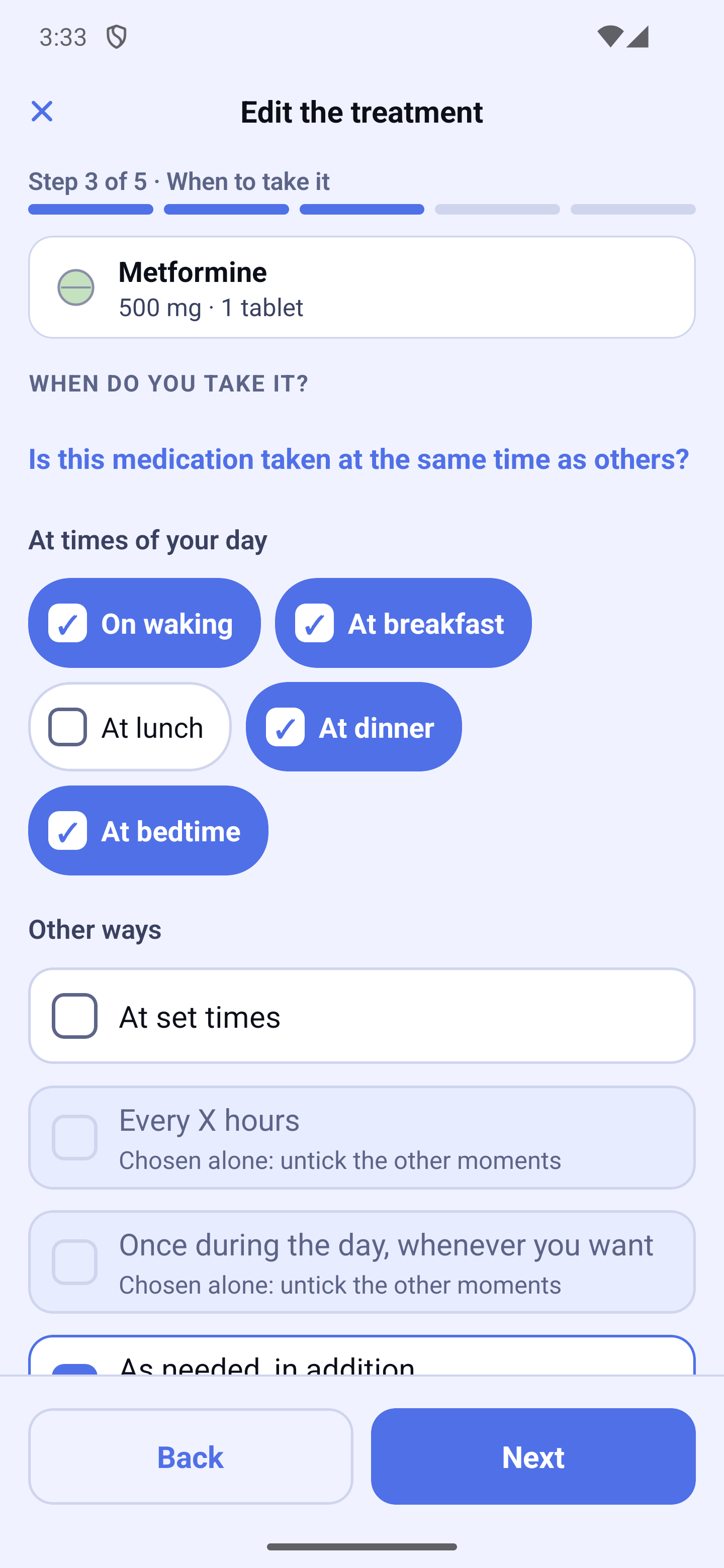
At times of your day — tap one or more chips: On waking, At breakfast, At lunch, At dinner, At bedtime. These doses follow your wake, meal and bed times (Settings → My meals and My wake and bed times).
Other ways:
- At set times — for example 8:00 and 20:00. Can be added to the times of your day;
- Every X hours — at a regular interval;
- Once during the day, whenever you want — with no set time;
- As needed, in addition — no reminder: you take it when you need it. Choose the possible doses (4 at most, for example ½, 1 and 1½); you will choose the quantity when you take it. Can be added to every other choice, or chosen alone. HoraDose sets no maximum and does not warn you if you take more than planned: follow the number of doses and the spacing given by your doctor or pharmacist. When in doubt, ask your pharmacist. Each as-needed dose is added to your day, at the real time, and to the Journal.
"Every X hours" and "Once during the day" are chosen alone (with, at most, "As needed, in addition"). When a choice cannot be added to the ones already ticked, it is greyed out and its reason is written under it (for example "Chosen alone: untick the other moments"). A greyed chip can still be tapped: tapping it shows the reason.
You must choose at least one moment to go on.
Step 4 — The times
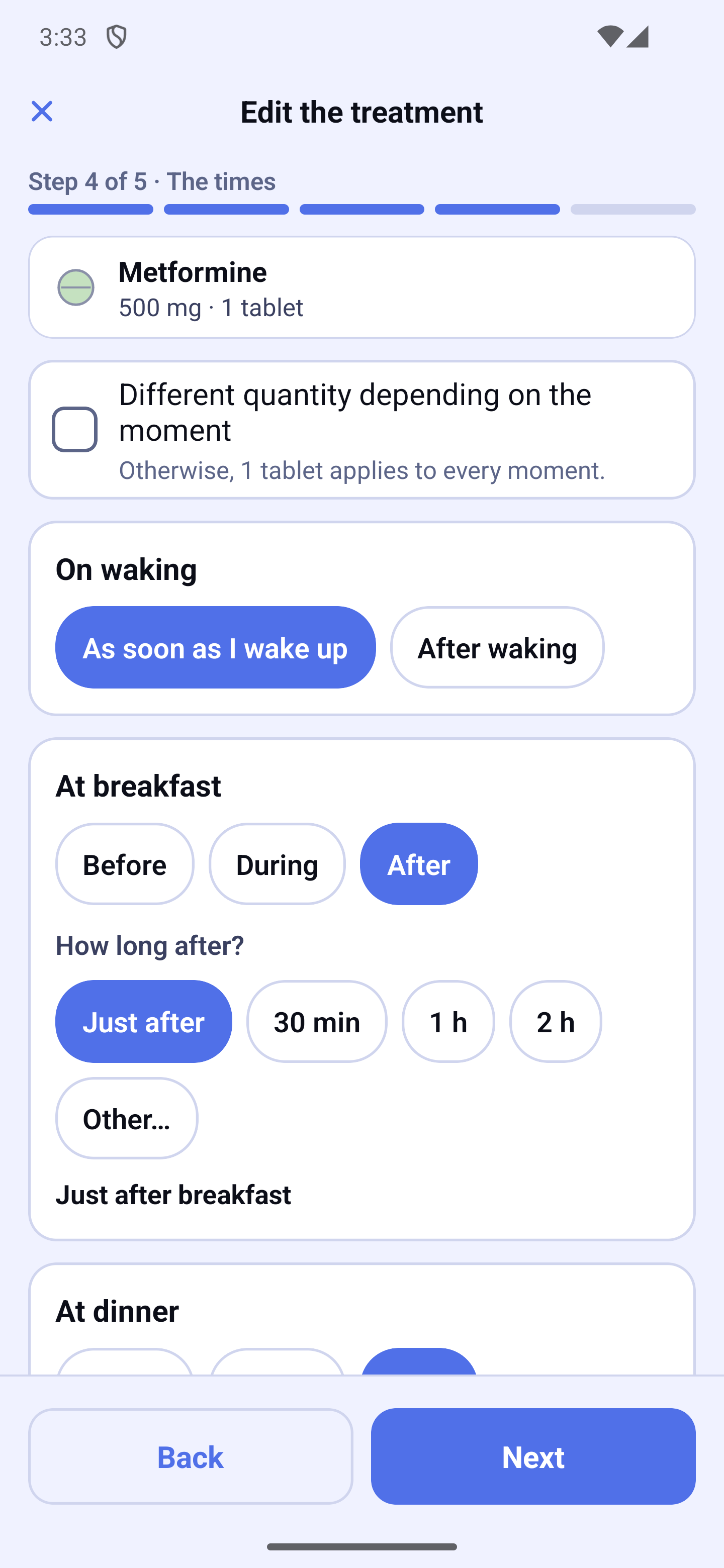
One card per chosen moment. For waking, meals and bedtime, you set it in two steps:
- The moment — for a meal: Before, During or After; for waking: As soon as I wake up or After waking; for bedtime: Before bedtime, At bedtime or After bedtime.
- How long before (or after)? — tap a delay offered (for example Just after, 30 min, 1 h, 2 h) or "Other…".
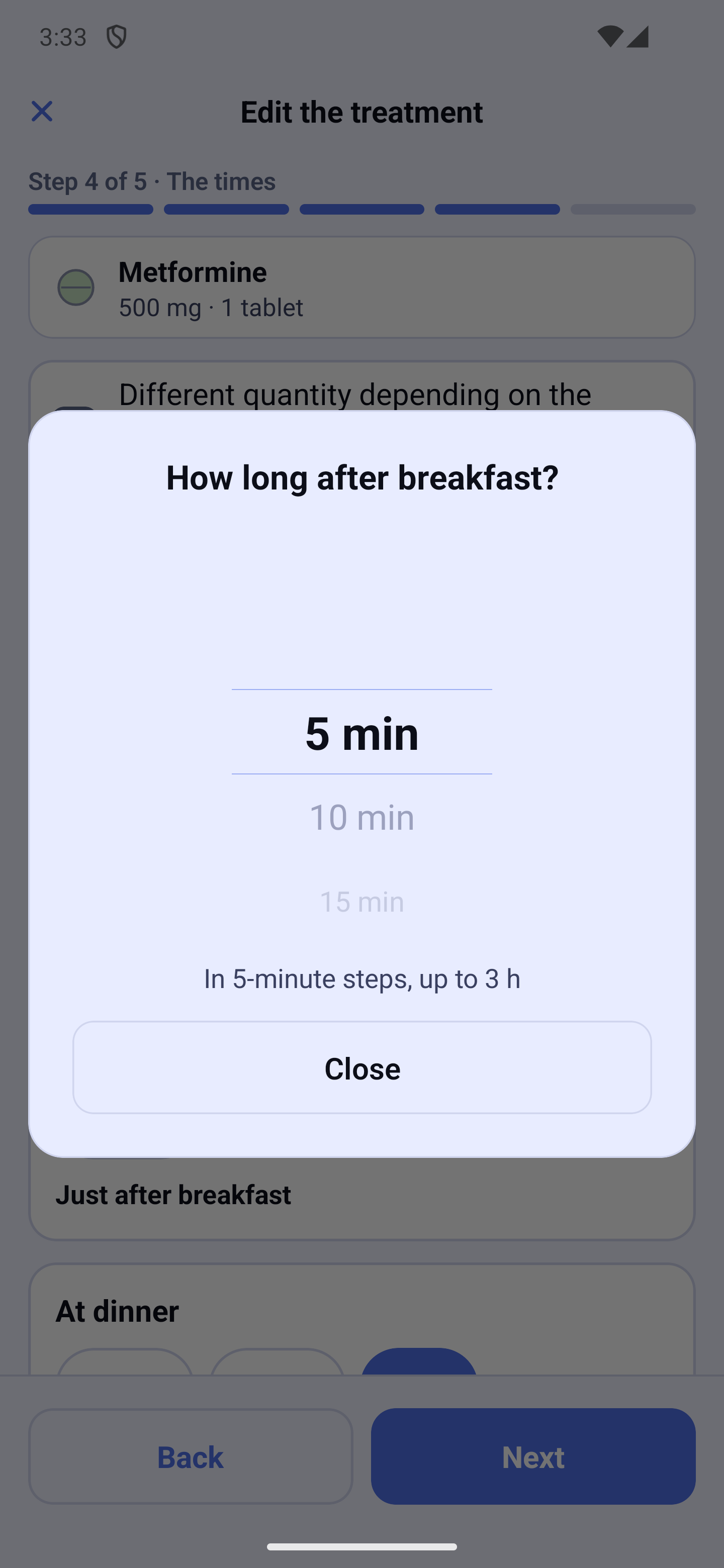
"Other…" opens a window with a wheel: from 5 minutes to 3 hours, in 5-minute steps. Turn the wheel, then tap "Close": the delay shown on the wheel is kept. For a linked medication, this is when the "This schedule is shared" window opens (see below).
Under the card, a sentence repeats the result (for example "Just after breakfast"). The delay is then written everywhere: on the "My treatments" cards, in a linked group's title, in the step 5 summary and on the printed list.
- At set times — tap the time to set it with the wheel (turn the wheel or tap the time in the middle to choose it; tapping outside closes without changing anything); "Add a time" for one more dose, "Remove" to take one away. If a set time falls at the same moment as another ticked moment, a warning asks you to check that it is not a double dose.
- Every X hours — choose the gap from the pills (1 h, 1 h 30, 2 h, 2 h 30, 3 h, 4 h) or "Other…" for a wheel from 1 hour to 12 hours; tap "Add a different gap" for a sequence that alternates (for example every 2 h in the morning, then every 3 h). Then choose when it stops: at a time, after a number of doses, or until the end of the day. The line "Doses at …" gives the day's times; if quantities differ from one dose to another, a selector appears for each dose, named by its time.
- Once during the day — choose the reminder: "Reminder 2 h before bedtime" or "Reminder at a set time". You can take it at any time of the day. A dose not confirmed by the end of the day is recorded as "Unconfirmed", never "Missed".
At the top of the step, the "Different quantity depending on the moment" box lets you set one quantity per moment (for example 1 tablet at breakfast and ½ at bedtime). Otherwise, the quantity from step 1 applies to every moment.
Every X hours, one quantity per dose. Check "Different quantity depending on the moment": a selector appears for each dose of the day, named by its time ("Dose at 04:00", "Dose at 06:30"…). For example, every 2 h 30 from 04:00 to 19:00, alternating 1½ and 1 tablet. If you then change the first dose, the gap or the end, each quantity stays at its time; if a dose that had its own quantity disappears, every per-dose quantity goes back to the step 1 quantity and the screen says so: "The quantities per dose were reset to … Please check them." At step 5, the summary gives each time with its quantity.
Step 5 — Duration
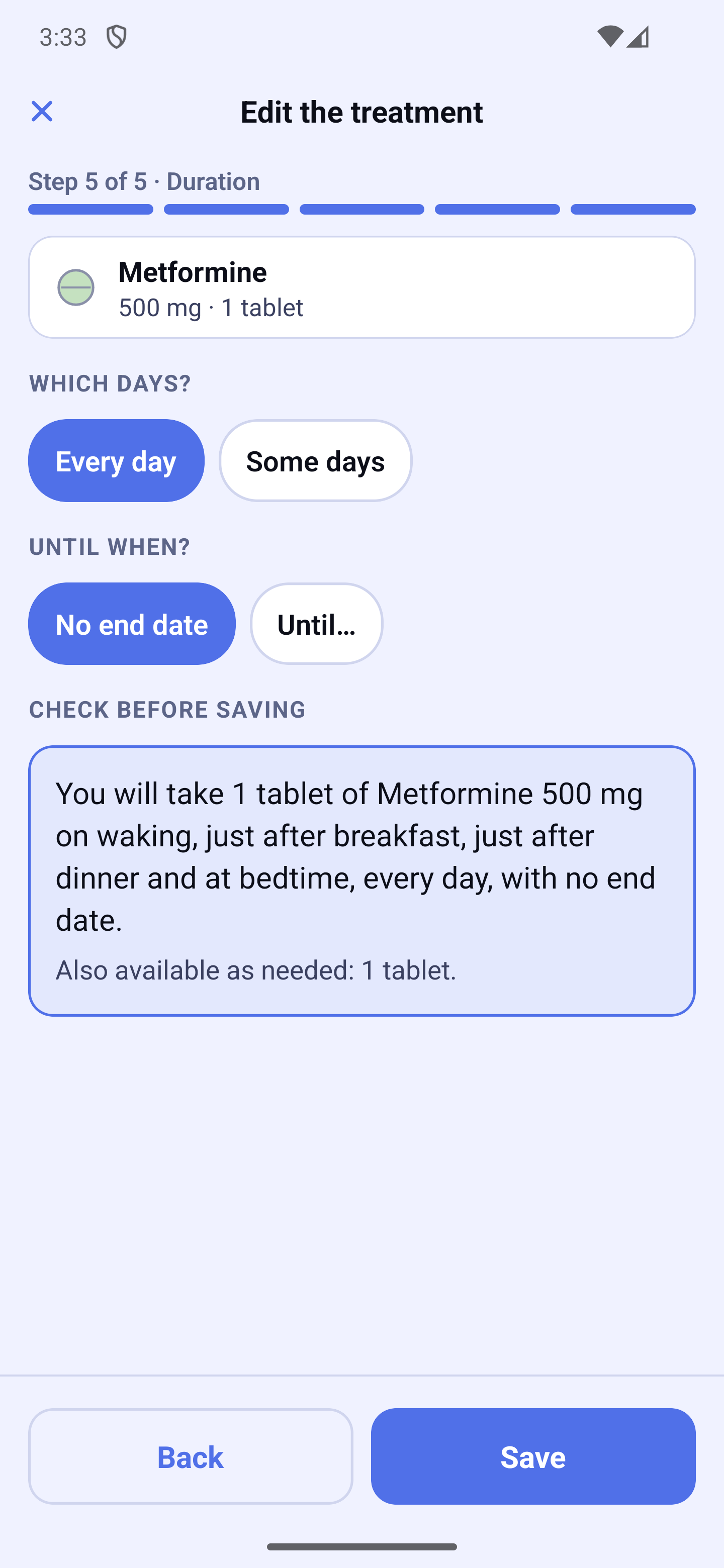
- Which days? — Every day or Some days (tap the days you want).
- Until when? — No end date, or "Until…" with a date.
- Check before saving — one sentence sums up the whole treatment: "You will take 1 tablet of … on waking, just after breakfast and at bedtime, every day, with no end date." Read it again: this is what the app will remind you of.
Tap "Save". The app then asks from when: Today, Tomorrow or "Choose a date…", then "Confirm".
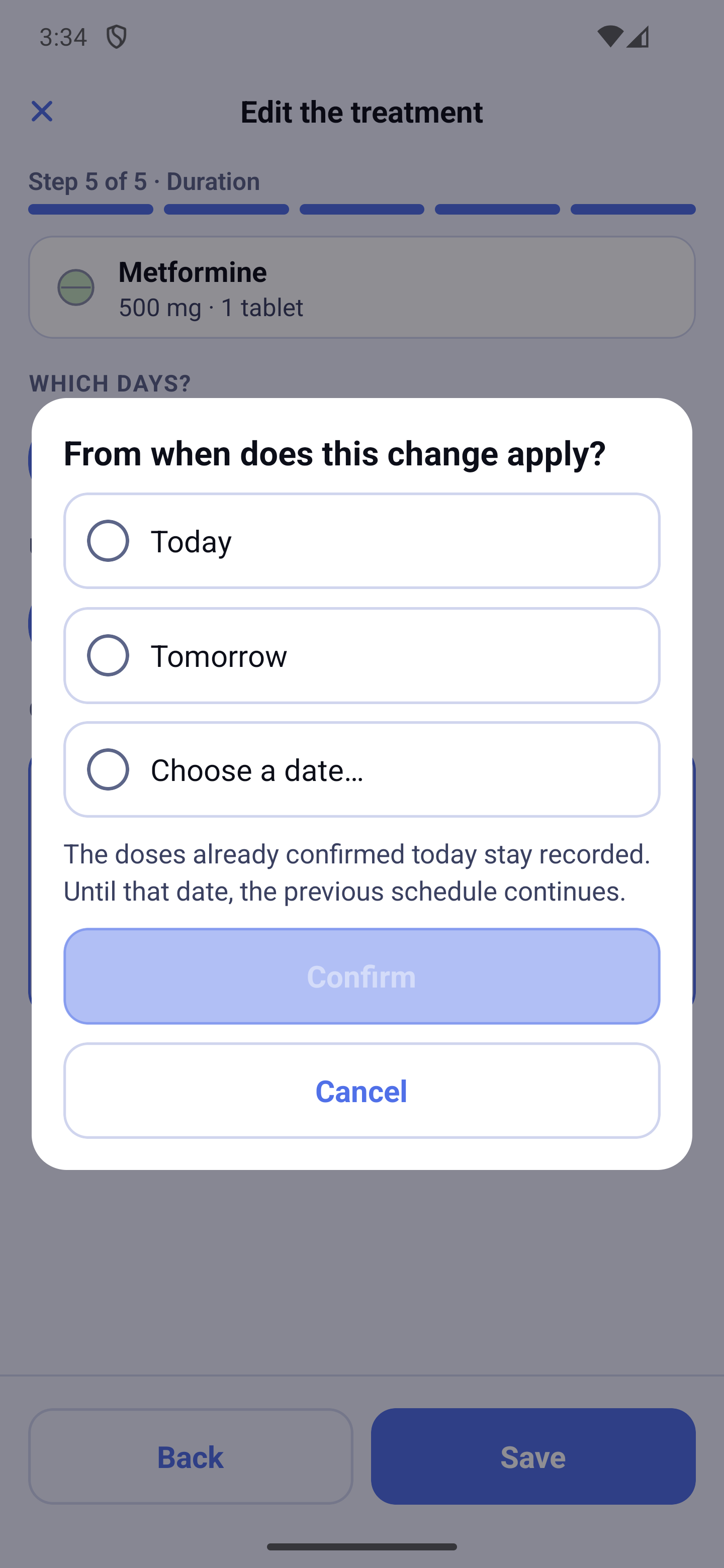
When you edit a treatment, the doses already confirmed today stay recorded, and the previous schedule continues until the chosen date. This is how you change a dose on a given date: the new period appears in "Since when", where an upcoming change can be cancelled.
Taking medications together (linked medications)
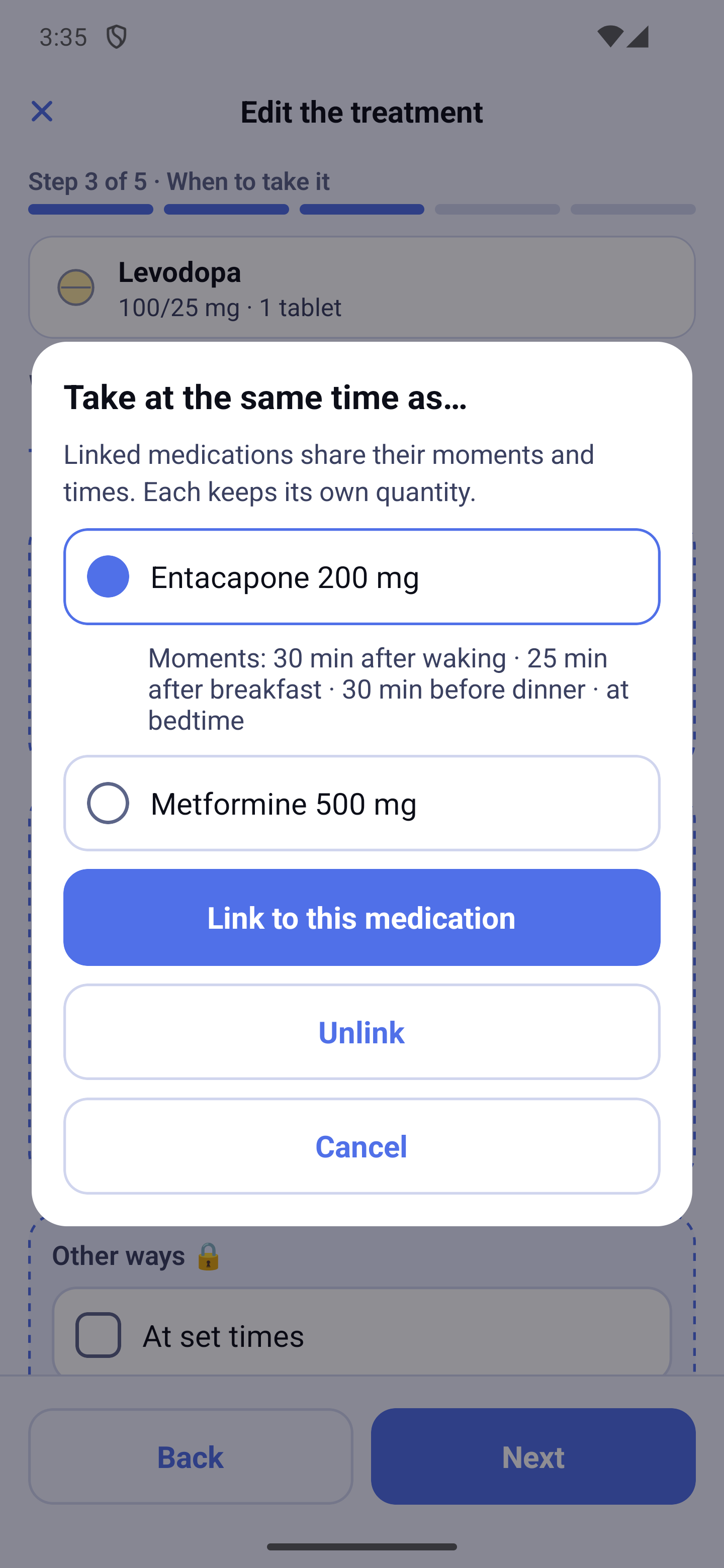
At step 3, the link "Is this medication taken at the same time as others?" opens "Take at the same time as…". Choose the medication, then "Link to this medication". Linked medications share their moments, their delays and their days; each keeps its own quantity. In the same window, "Unlink" removes the link.
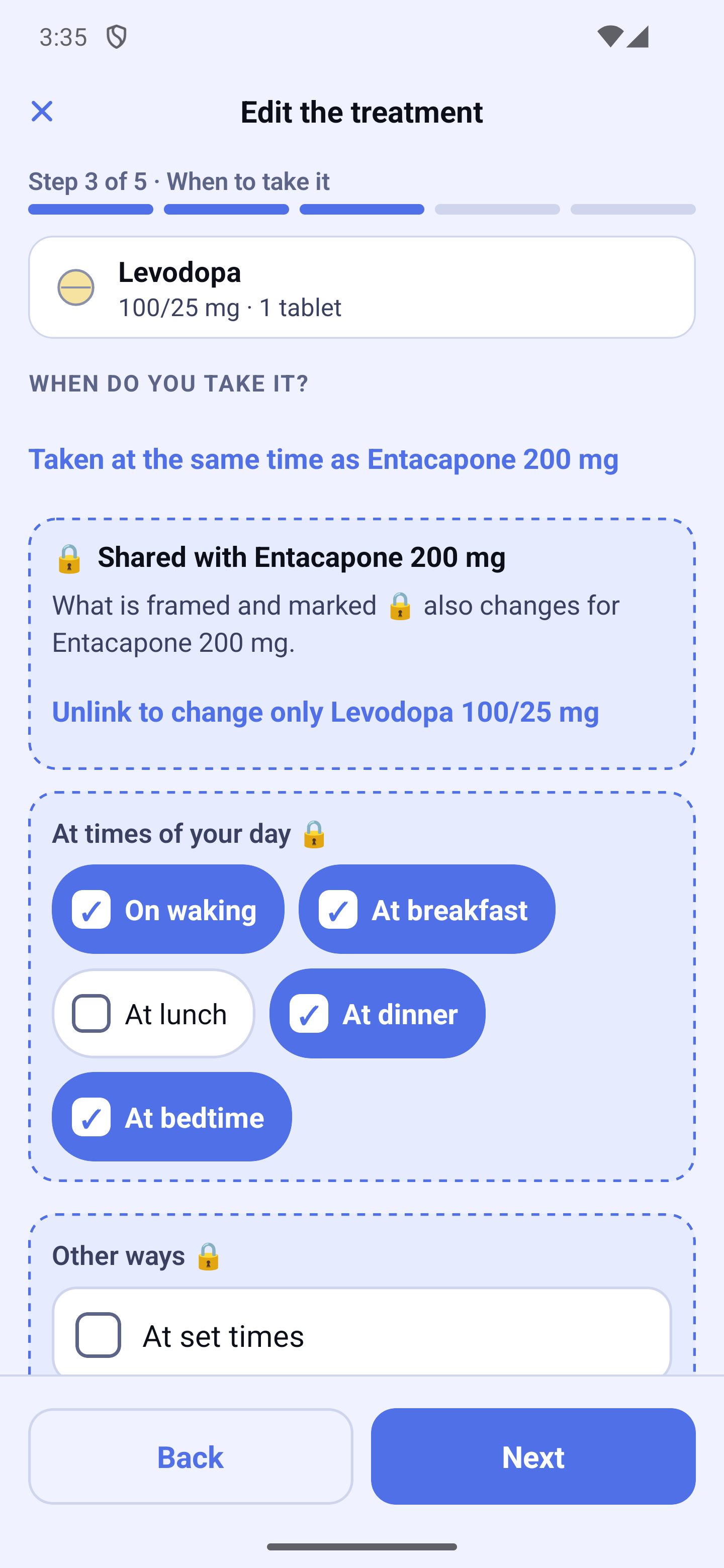
When you edit a linked medication, steps 3, 4 and 5 begin with a "🔒 Shared with …" block: what is framed and marked 🔒 also changes for the other medication. What is not framed ("As needed, in addition", the quantity) only concerns the medication you are editing.
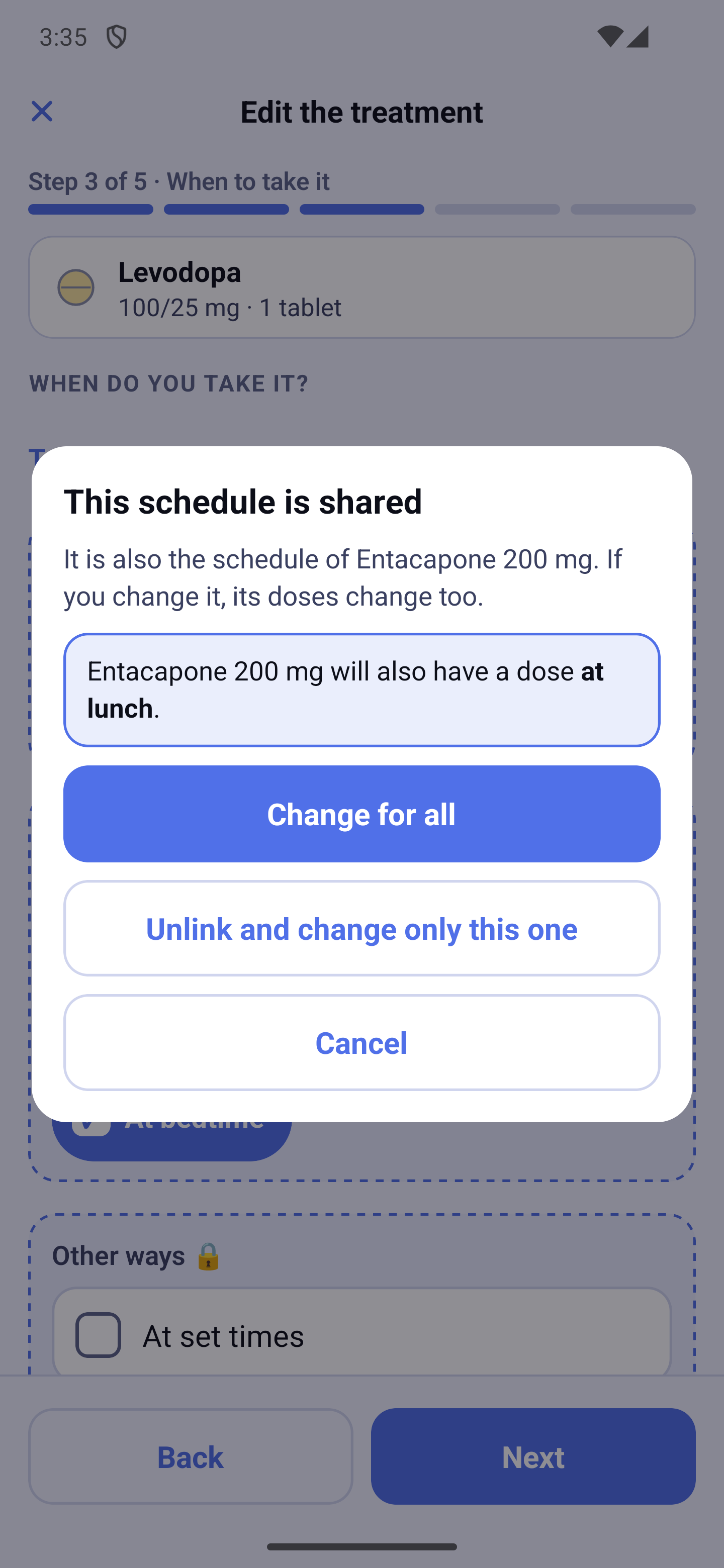
Each time you touch a framed item, the "This schedule is shared" window first says what will change for the other medication (for example "Entacapone 200 mg will also have a dose at lunch"). You choose:
- "Change for all" — the change applies to the linked medications;
- "Unlink and change only this one" — the link is removed, and only this medication changes;
- "Cancel" — nothing changes.
The "Unlink to change only …" link, in the block at the top, removes the link after you confirm. Both medications keep their current doses; after that, your changes only affect the one you are editing.
"These same moments already exist"
If the medication is not linked and its moments and its delays are exactly those of another medication, the app tells you when you tap "Next" at step 4: you can link them, or "Keep this medication separate". A different delay, even by 5 minutes, does not trigger this offer. Linking does not change the times or quantities already saved.