Health Journal
Day, week, month, notes, sharing and printing
Accessing the Journal
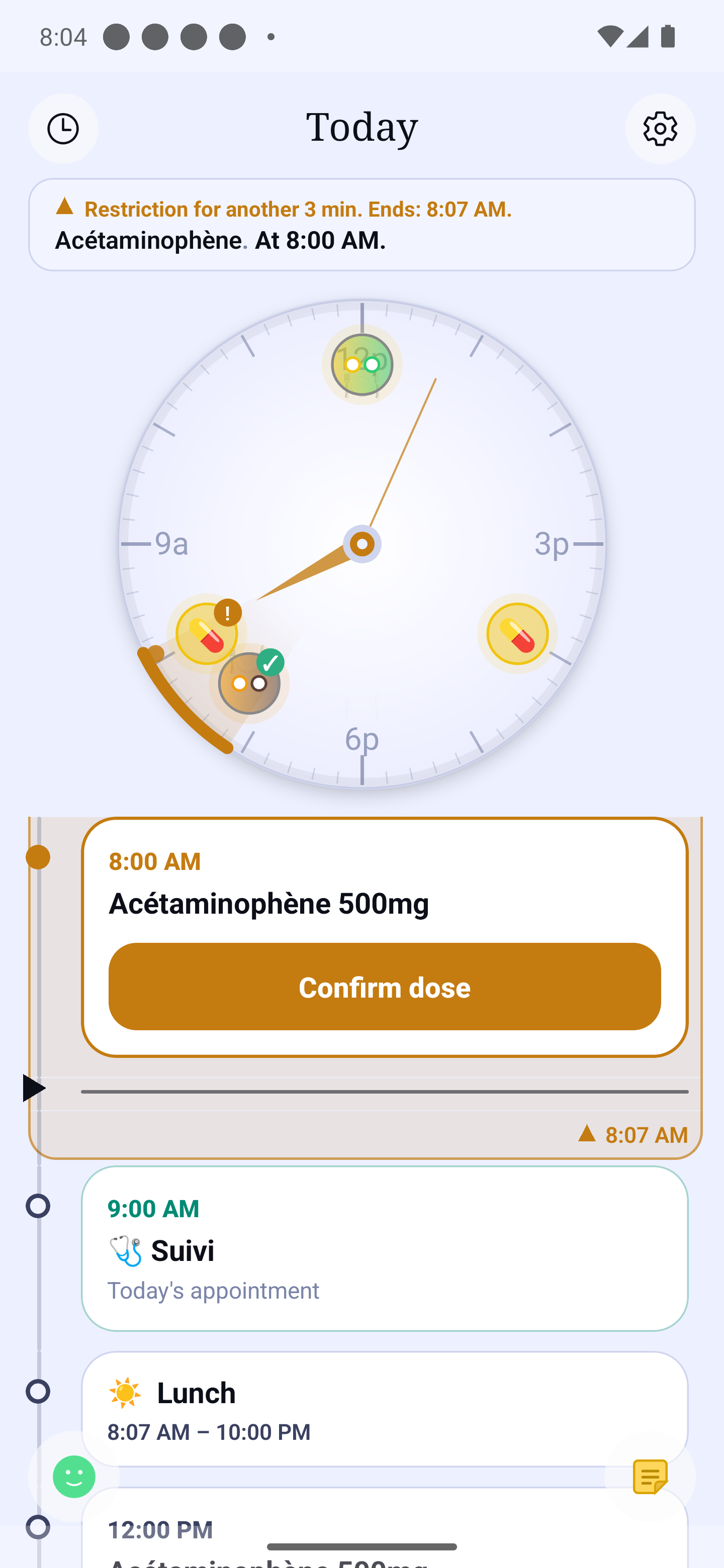
From the home screen, swipe your finger from left to right: the Journal appears, on the most recent period. Keep swiping the same way to see earlier days or weeks. To come back, swipe left from the most recent Journal: you are back on the home screen. You can also tap the 🕐 button at the top left of the home screen, then Journal. With a screen reader, swiping is turned off: use the 🕐 button.
Choosing the period
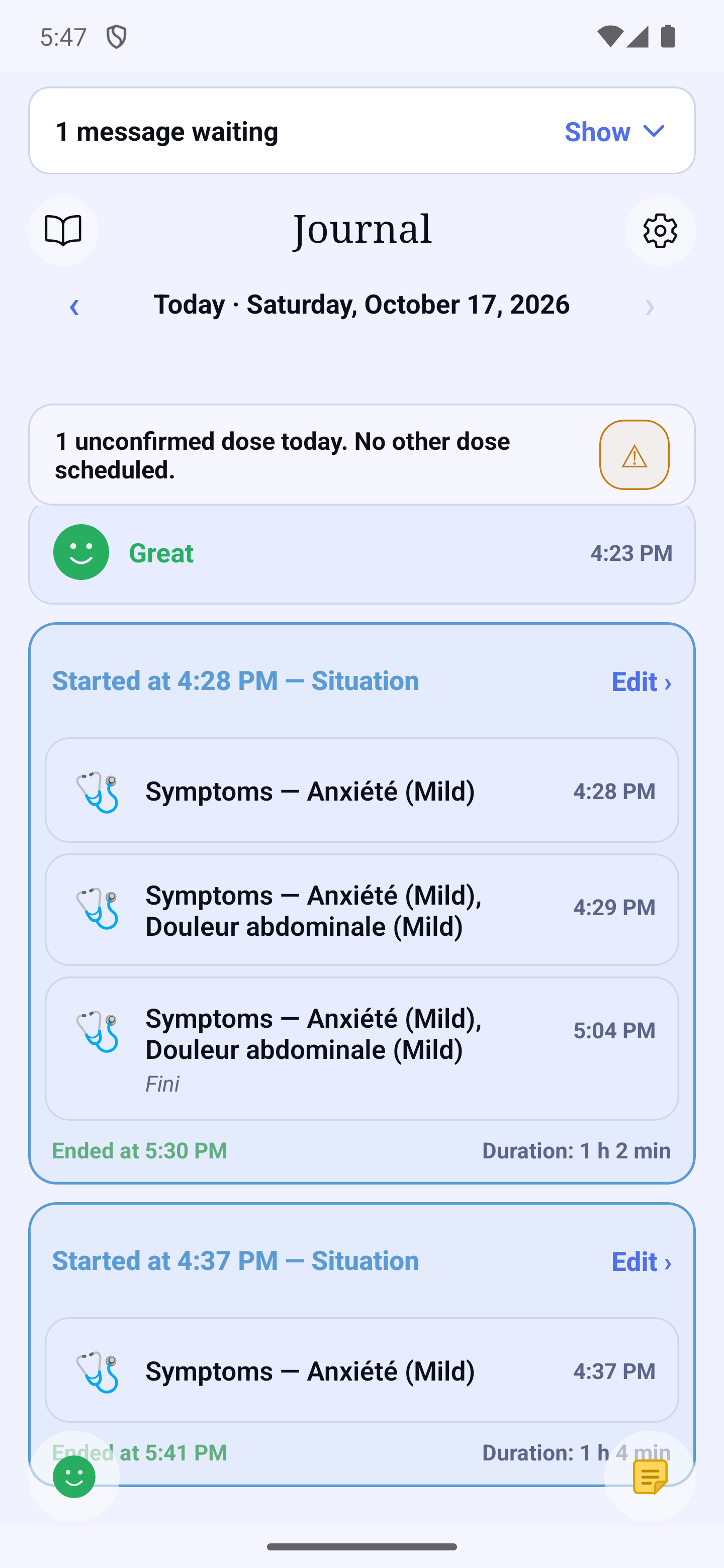
Under the title, tap the period (for example "Today · Wednesday, September 16"): choose Day, Week or Month, then the date in the calendar. The ‹ and › arrows move to the previous or next period.
The arrows slide the page. When you tap ‹ or ›, the neighbouring page slides onto the screen, exactly as if you had swiped it with your finger, and the date changes when it arrives. One tap moves by one period only (one day in Day view): if you tap a second time while the page is sliding, that tap is ignored; tap again once the slide is over. The neighbouring page always opens from the top, even if you had scrolled the previous one. If Reduce Motion is on in your phone's settings, the page changes at once, without sliding. The same goes for Statistics, Reports and Appointments.
The date label is centred vertically between the arrows, with the same space above and below.
With a screen reader (VoiceOver, TalkBack), the arrows are announced "Previous day" and "Next day" ("Previous period" and "Next period" in Week or Month view) and say the date they lead to. After a tap, the new date is announced in words, preceded by "Today,", "Yesterday," or "Tomorrow," when it applies; the year is only spoken for a date outside the current year. The focus stays on the arrow, so you can tap it again to keep going. With a screen reader on, the page changes without sliding.
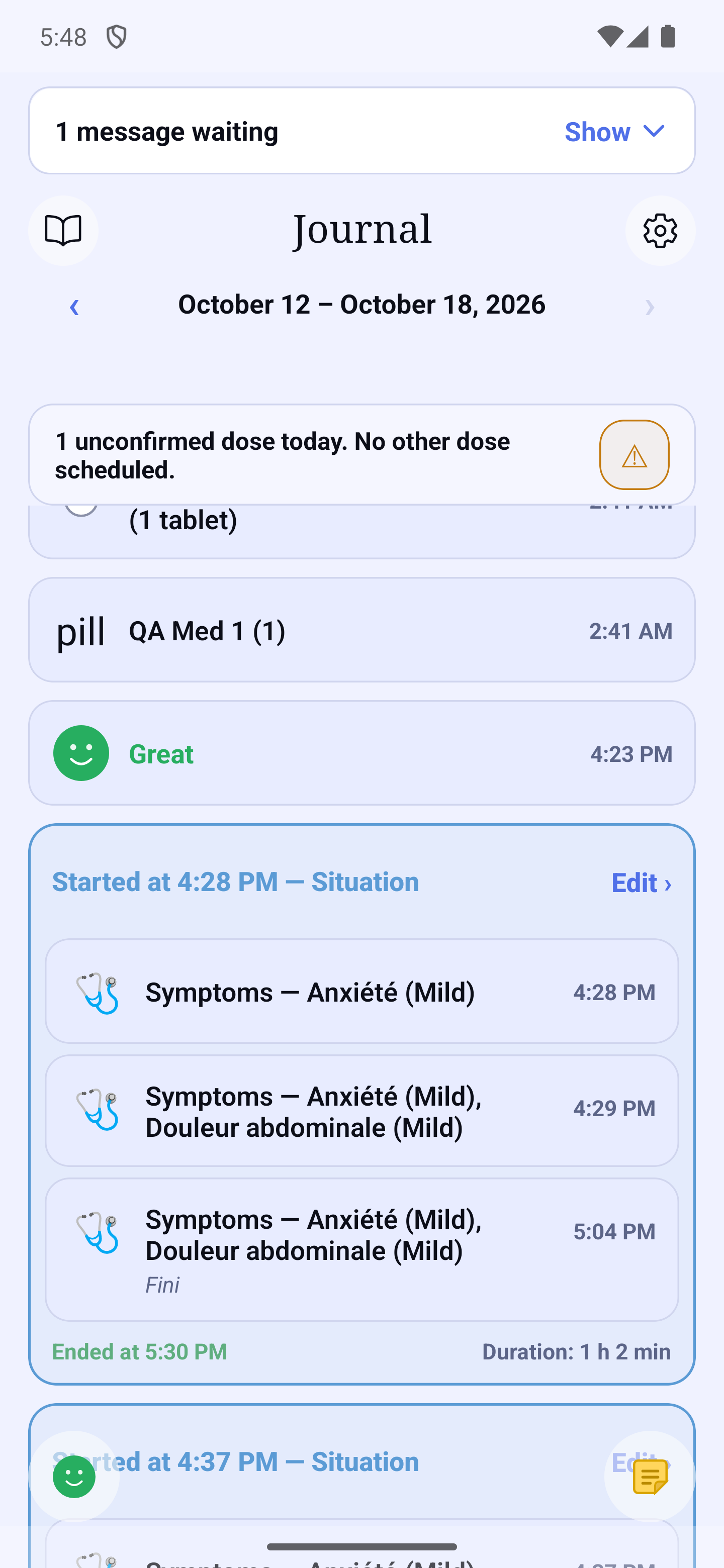
The journal shows, in time order, everything you recorded: doses (with the amount), mood, symptoms, notes and exercises. In Week and Month view, they are grouped by day.
Notes, one-off symptoms and the observations of a situation are shown in full, on as many lines as needed: nothing is cut off with "…". The icon and the time stay at the top of the card.
A mood card carries a ⋮ at the top right: its menu lets you edit or delete it (see "Mood, symptoms and situations"). A situation is a blue frame: top left "Started at 08:10 — name" ("Started yesterday at …" or "Started on" followed by the date when it began another day) and, top right, a ⋮ (menu "Edit the situation" / "Delete this situation"); bottom left "Ended at 15:30" and, on the right, "Duration: 7 h 20 min". A situation still ongoing says "Ongoing" with the time elapsed; if nothing has been noted for more than 12 hours, it says "Duration not confirmed", with no figure. The note of an observation is written in italics under its card.
If you have connected Apple Health or Health Connect (Premium), the Week and Month views start with a "My week" or "My month" card, with the period written out in full. It sums up your steps, sleep, weight and workouts — see "Connected health data".
Adding a note
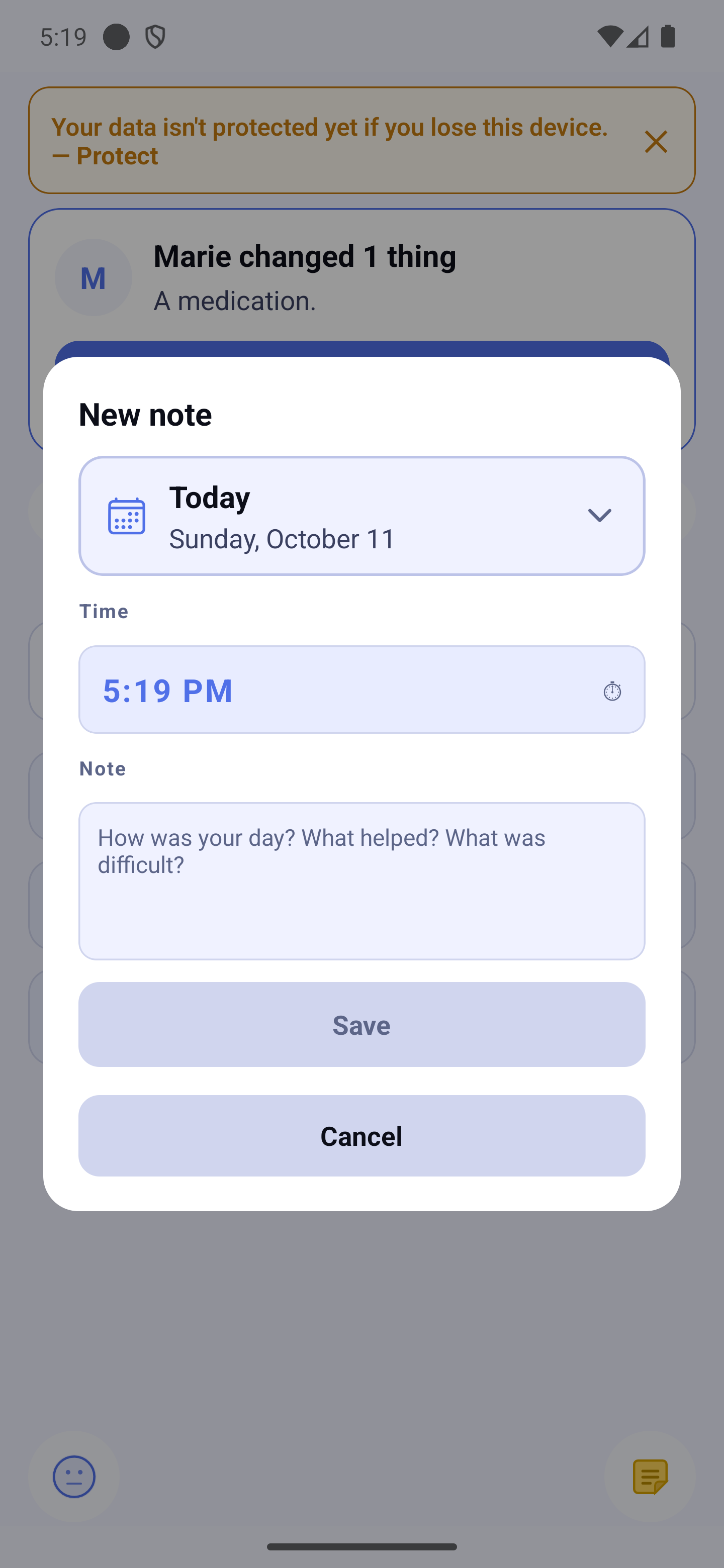
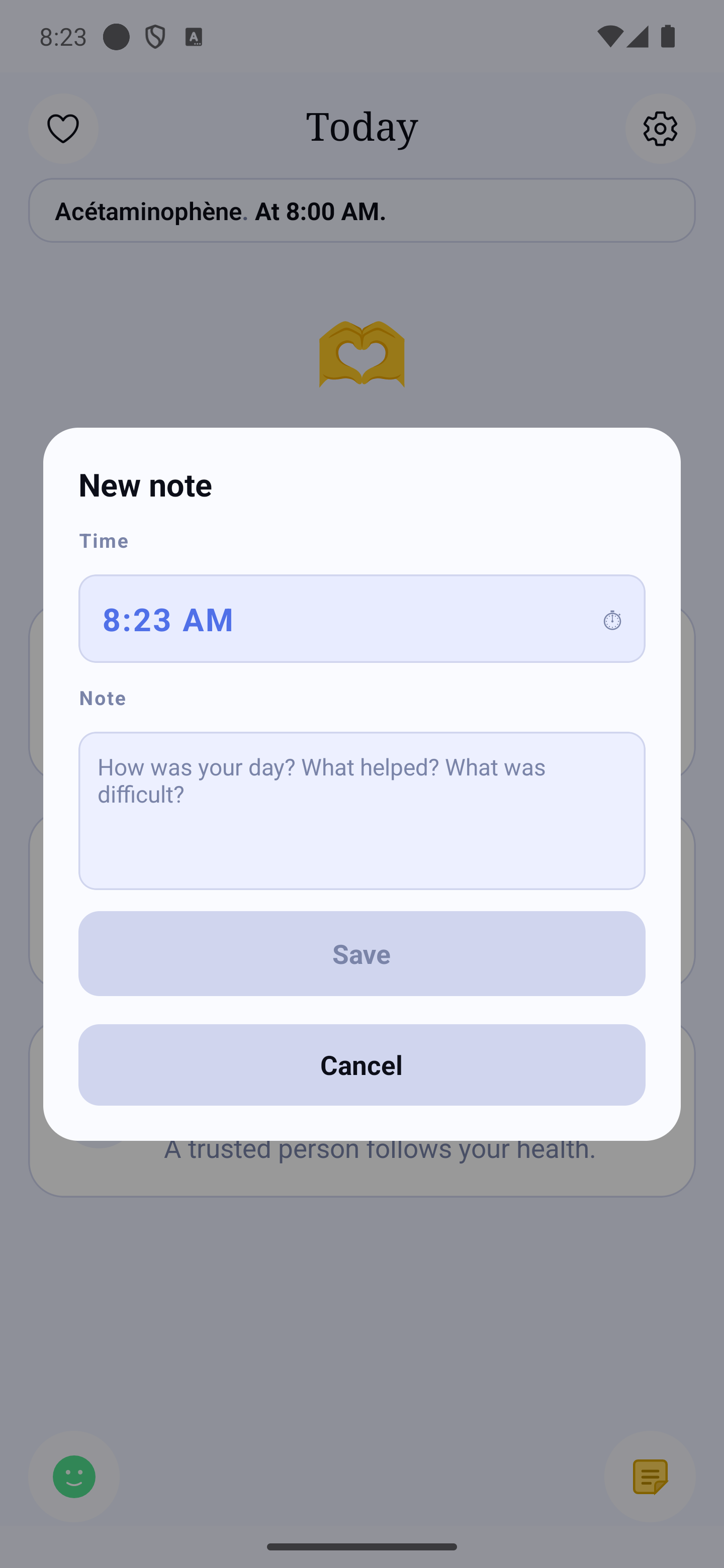
Tap the yellow note button at the bottom right of the screen, then "Add a note to the journal": write your note, adjust the time if needed, then "Save".
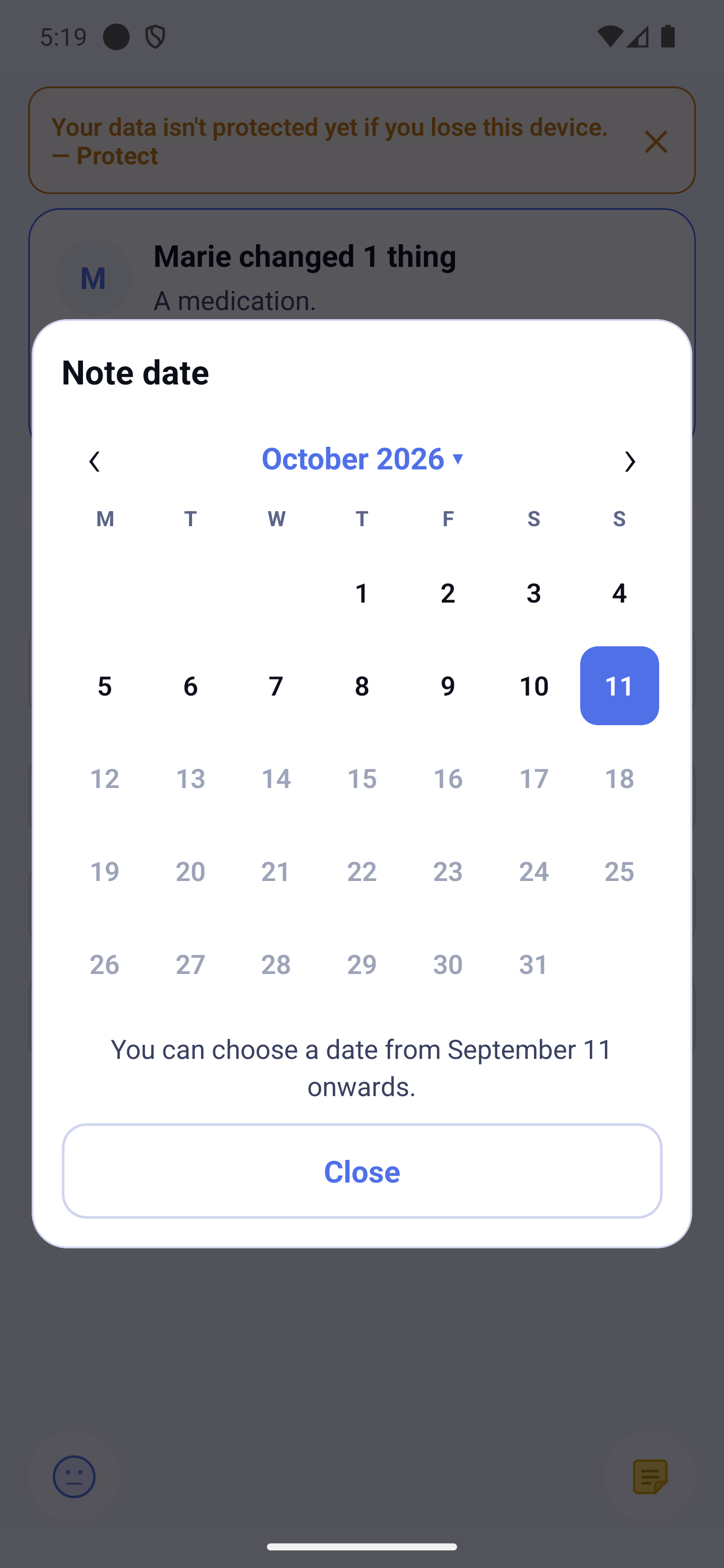
At the top of the dialog, a button shows the note's day, with the full date underneath. From the home screen, it is "Today". From the journal, it is the day you were looking at. If you were looking at a week or a month that is already over, it is the last day of that period. Tap the button to choose another day in a calendar. Future days are greyed out: you cannot choose a day that has not come yet.
With the free version, the calendar goes back no further than what the journal shows. Under the calendar, a sentence gives the earliest date you can choose: "You can choose a date from … onwards." Your text is never lost. With Premium, you can choose any past day.
If you add from a past day of the journal, HoraDose first asks "For which day?": the day you were looking at, or today (see "Mood, symptoms and situations"). The same question comes before a dictation, a mood, one-time symptoms or a situation.
Once the note is saved, the journal opens on the note's day, and shows it to you, outlined for a few moments. The same goes after a mood, one-time symptoms or a situation: the journal opens on the day of the entry, which is briefly outlined.
Adding a quick note
A quick note is a ready-made sentence, such as "I drank a glass of water." or "I weighed myself."
- Open. Tap the yellow note button at the bottom right, then "Add a quick note to the journal".
- Choose. In the "Quick notes" sheet, tap the note you want.
- Fill in. If the note asks for a number or a word, fill it in. A field marked "(optional)" can stay empty. Under the fields, "Preview in the journal" shows the sentence as it will be written. If a required field is missing, a message tells you which one: "To save, fill in: …".
- Save. Tap "Save".
As with a free note, you can change the time. If you are on a past day of the journal, HoraDose first asks "For which day?".
If a number looks unusual (for example, one digit too many), the message "This value looks unusual. Please check it." appears. It never blocks you: you can save anyway. HoraDose does not judge your values. If you are unsure about a reading, talk to your healthcare professional.
If you leave before saving, HoraDose asks "Discard changes?". "Don't Save" drops the entry; "Cancel" takes you back to it.
The "Manage my quick notes" link, under the list, leads to your settings (see below).
Dictating a Note
In the same menu, choose "Dictate a note to the journal" if you would rather speak than type. Above the text box you find the same date button and the time of the note. The time is the present moment. The day is the one you were looking at in the journal, or today from the home screen. Change them if the note is about another time. The note is filed on that day and at that time, and the journal opens on it once it is saved.
- Hold the microphone and speak — HoraDose listens for as long as your finger stays on it. Release when you are done. The waveform under the microphone moves with your voice: if it moves, you are being heard.
- Take your time. A pause erases nothing: your words stay in the box and what follows is added after them. A dot separates each passage.
- The undo arrow removes only the last passage, the highlighted one — never the whole note. To clear everything, use the bin.
- The pencil opens the text for keyboard editing. Handy for a medication name dictation misheard — always read it over before saving.
Changing a Note's Date
In the journal, tap a note's ⋮, then "Edit" to edit it or "Delete" to remove it (a confirmation is asked; in a loved one's draft session only "Edit" is offered). The dialog holds the date button, the time and the text. If you change the day and tap "Save", the note leaves the old day and the journal takes you to the new day, where it appears outlined for a moment.
Editing a quick note
In the journal, tap the card of a quick note. The "Edit note" sheet opens with the values you entered. Change what you want, then tap "Save".
A value keeps the unit it was recorded in, even if your phone's settings change later. The sentence also stays as it was when you saved it.
This sheet is only for corrections. To delete a note from the journal, use its card, as with a free note.
My quick notes
You choose which quick notes appear in the "Quick notes" sheet. Tap ⚙, then Settings, then "My quick notes" (in the ME section). Each note has a label: "Provided by the app" or "Created by you".
On the first day, three notes are shown: "Glass of water", "Weight" and "Blood pressure". The others are already in the list, hidden: protein, blood sugar, temperature, nap, fall, and six added notes — sleep, coffee / tea, alcohol, cigarettes, oxygen saturation and steps. Tick a note's box to show it.
- Hide or show. Tap the box on the row. A hidden note is marked "Hidden"; it no longer appears in the sheet but stays in this list. It comes back when you tick it again. Nothing is erased.
- Change the order. Put your finger on the ≡ handle, on the right of the row, then drag up or down. With a screen reader, use the row's actions: "Move up", "Move down", "Place first", "Place last".
- Edit. Tap the row.
- Add. Tap "Add a quick note".
- Go back to the start. Tap "Restore the starting list". The notes provided by the app come back as on day one: the three of the start are shown, the others hidden. Your own notes are kept, at the end of the list. HoraDose asks you to confirm first.
Creating or editing a quick note
Tap "Add a quick note" to create one, or the pencil on a row to edit it. The screen is called "New quick note" or "Edit quick note".
- The sentence. Write the sentence the way you would say it.
- Values to fill in. Tap "Add a value to fill in" to ask for a number, a word or a choice when you make the entry. For each value, give its name, its type (Number, Choice of 2 to 5 options, or Short text), its unit (leave empty if there is none), and say whether it is required or optional.
- Save. Tap "Save". The button stays greyed out until there is a sentence or a value.
If you leave the sentence empty, the note is written as "name: value unit".
To delete a note you created, tap "Delete this quick note". It is no longer offered, but notes already in the journal stay.
Units of quick notes
Units follow your phone's region, not the language of the app. Depending on your region, weight is shown in kg or lb, temperature in °C or °F, and blood sugar in mmol/L or mg/dL. Pulse is written in bpm.
A value already saved never changes unit.